The help guide series for our Full Accounting productThe automatic bank feed feature integrates Clear Books with your bank through a secure third-party provider, Plaid, to securely import your transactions.
Setting Up Your Bank Feed
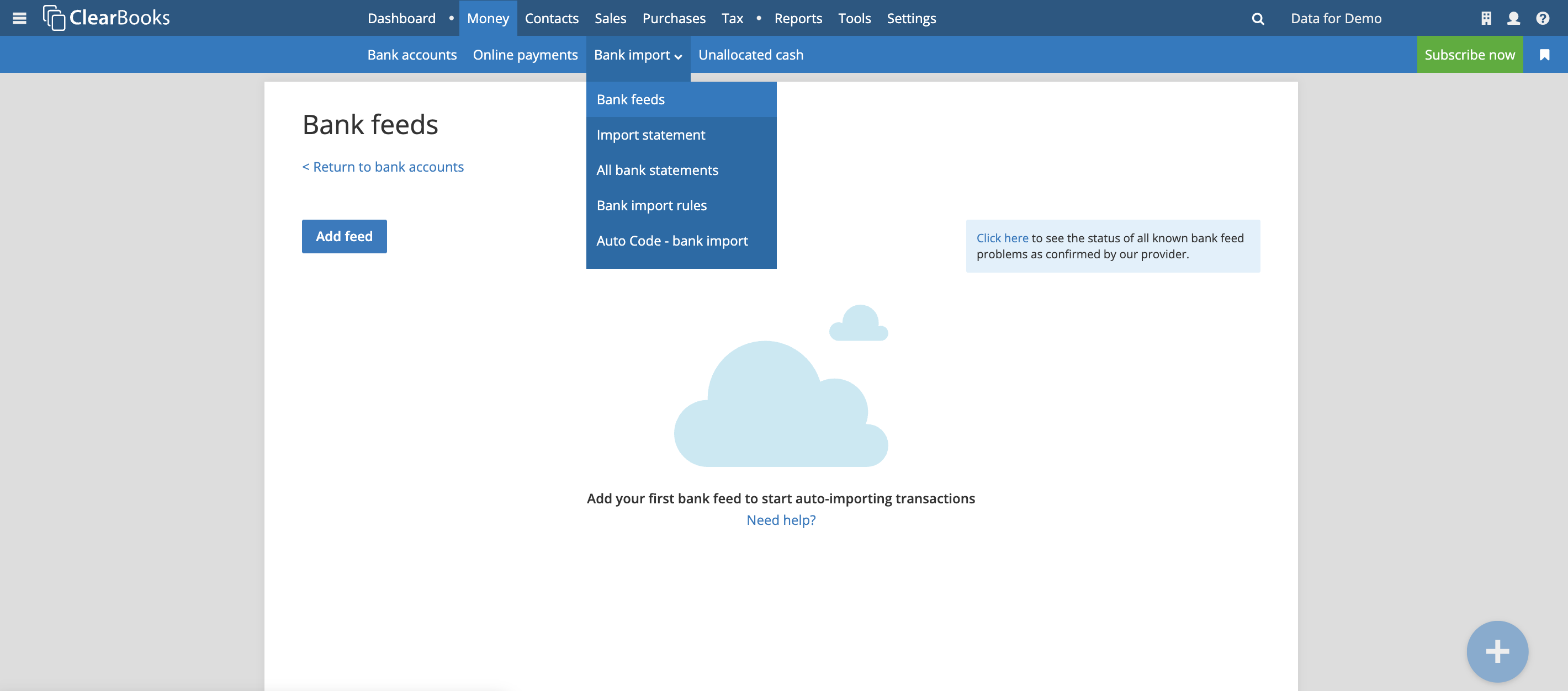
1. Navigate to Bank Feeds & Accept Consent
Go to Money > Bank import > Bank feeds. Read and accept the initial Clear Books consent, then click Add feed. A pop-up will appear asking for your consent to share data with Plaid. Click Continue (this consent lasts 90 days).
If you are simply adding an additional feed to an existing setup, you can skip directly to clicking 'Add feed'.
2. Select Your Bank
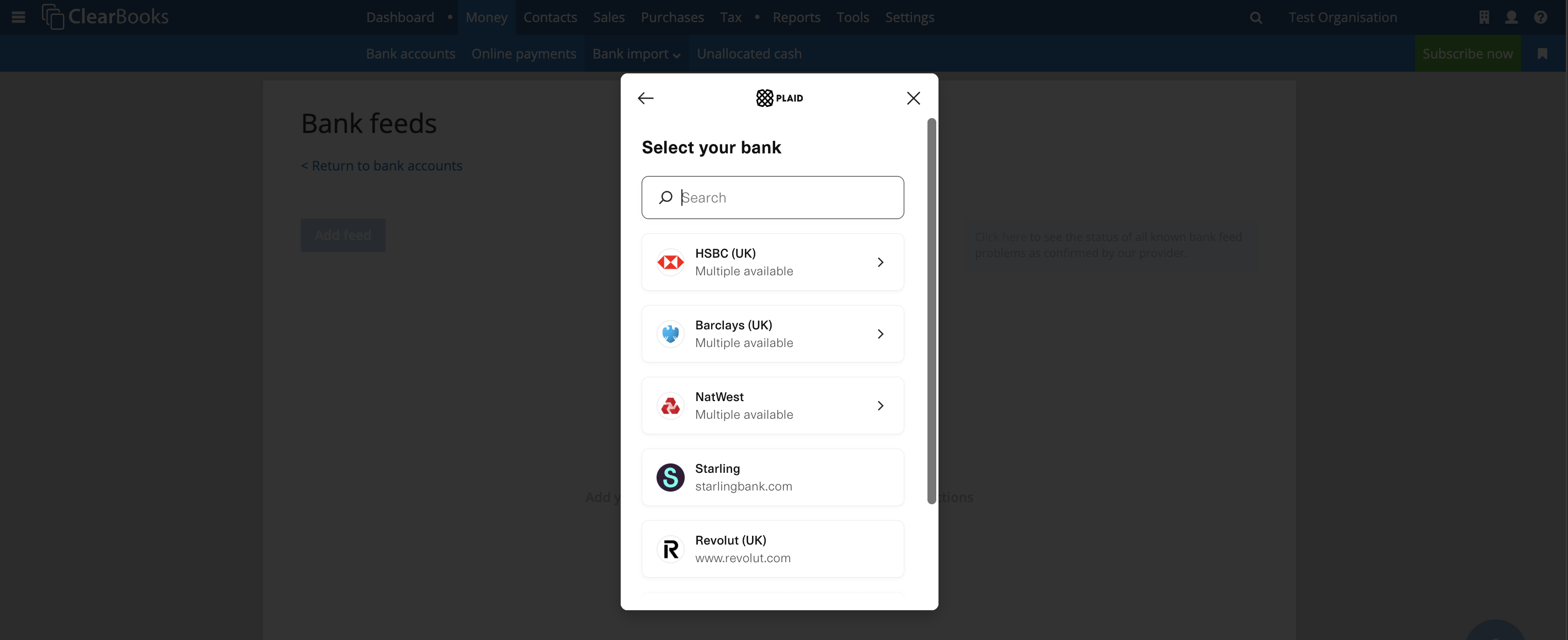
Search for your bank by name or select its logo.
- Missing Banks: Plaid continuously adds new financial institutions. If yours isn't listed, contact Clear Books support to request it.
- Account Types & Login Errors: Ensure you select the correct account type (e.g., a business feed requires business credentials). If you receive credential errors despite entering them correctly, verify your login works on your bank's native web portal, or try creating the feed in an incognito/private browser window.
- NatWest/RBS Bankline Users: To avoid a "No valid bank accounts" error, you must first assign Third Party Provider (TPP) privileges to a new role in your Bankline settings.
3. Authenticate Account Access
You must authorise Plaid to access your specific accounts. Choose one of two methods:
- QR Code (Default): Scan the code with your smartphone camera. Tap the notification to open your bank's mobile app, log in, and confirm the accounts you want to share.
- Go to bank site: Click continue on desktop to open your bank's portal in a new tab. Follow their instructions, which may require an SMS code, PIN, or card reader device.
Once authorised, return to Clear Books, confirm your selected accounts in the branded interface, and click Continue.
4. Link to Clear Books & Import
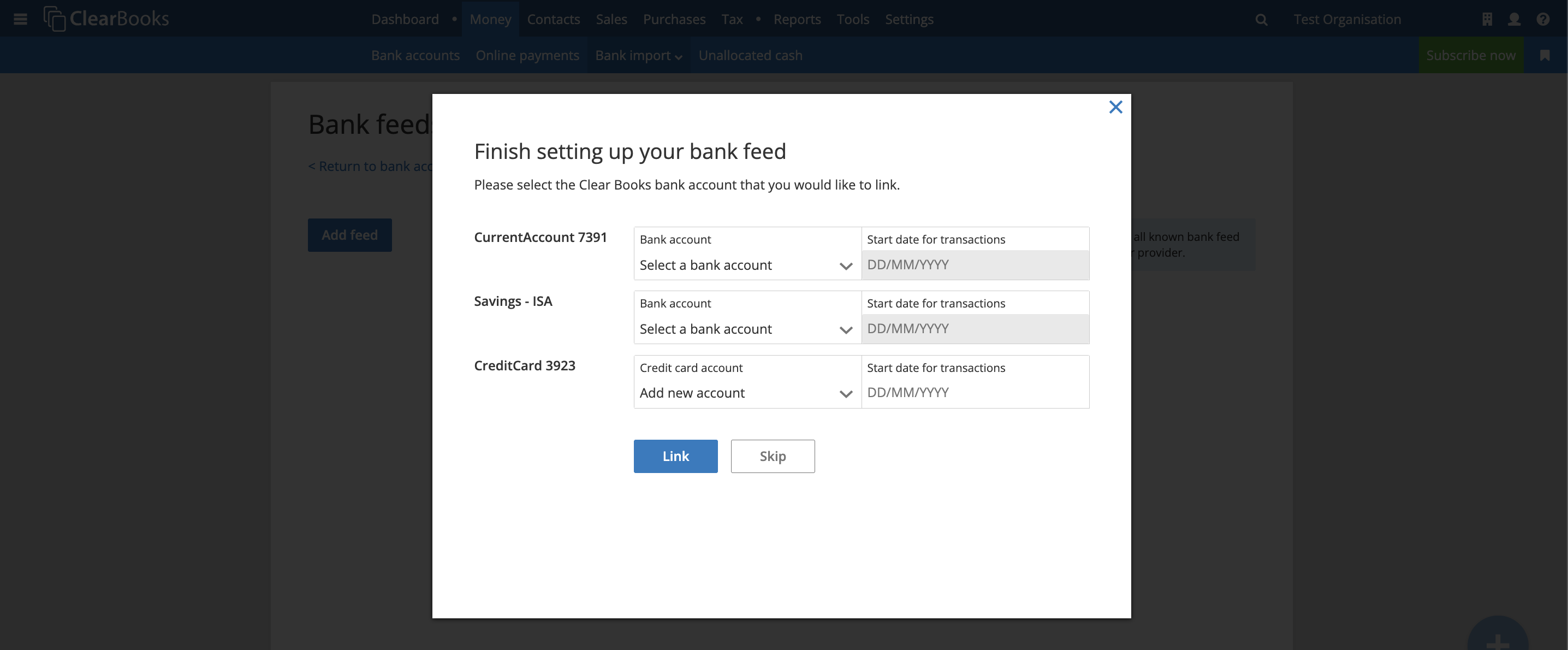
Select the matching Clear Books bank account from the 'Bank account' dropdown menu (or choose Add new account in the dropdown if you haven't created one yet). Choose a start date for your transactions and click Link.
Historic transactions from your chosen start date onward will immediately import. Note: Each bank strictly controls how far back they allow historical data to be retrieved. If your bank's limit prevents transactions from importing as far back as your requested start date, you can manually import the missing historic transactions into Clear Books.
Once the initial statement generates in your Money > Bank import > All bank statements menu, click it to begin explaining the transactions.
Transaction Syncing & Import Rules
Your feed requires no manual intervention. Plaid checks your bank's API four times a day for updates, automatically fetching data based on the bank's processing limits.
Transaction State | How Clear Books Handles It |
| Pending | Not Imported. Money is authorised (the "transaction date"), but hasn't settled. |
| Posted | Imported Automatically. The funds have officially left or entered your account (the "bank date"). Clear Books always displays this posted date on your imported statements. |
Note: Banks often move transactions from pending to posted at the start of the next business day. Weekends and holidays may cause a slight delay before a transaction appears in Clear Books.
90-Day Reauthentication
Under Open Banking regulations, you must reauthorise your bank feed every 90 days. Two weeks before expiry, a Feed access expiring warning will appear. If it lapses, the feed disconnects.
- Navigate to Money > Bank accounts.
- Click the warning link or Manage Bank Feeds.
- Click Reauthenticate next to the relevant feed.
If you reauthenticate before expiry, you simply confirm through the Plaid pop-up. If you wait until after it expires, you will need to completely log back into your bank's secure screen to renew consent.
Was this article helpful?
That’s Great!
Thank you for your feedback
Sorry! We couldn't be helpful
Thank you for your feedback
Feedback sent
We appreciate your effort and will try to fix the article