Welcome to the help guide series for our Full Accounting productStep 1: Create the Initial Bill for the Purchase
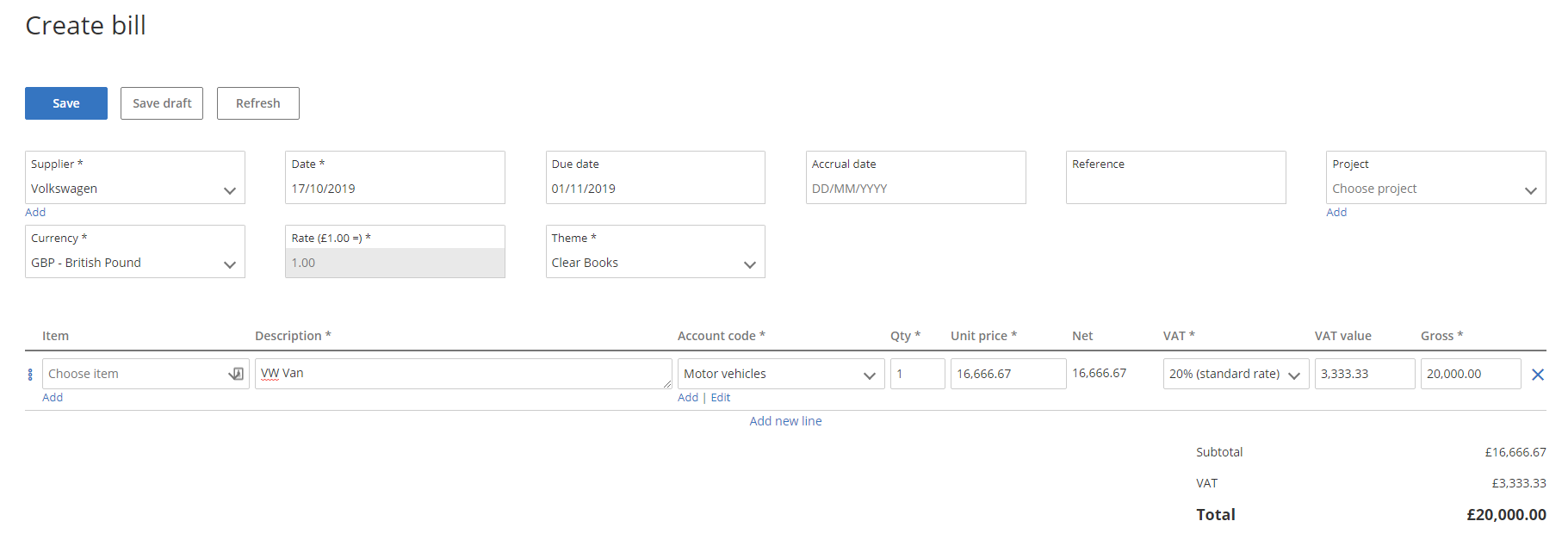
Head to Purchases > Bills > Create a bill, and enter all the required fields marked with an asterisk.
Step 2: Record the Upfront Deposit Payment
Mark the deposit being paid off on the bill using either the Record payment method or the Bank Explain page.
Step 3: Set Up a Dedicated Loan Account
Head to Money > Bank Accounts > Add Account. Select the Loan Account type, name this "Hire Purchase loan account" (or similar), and hit Save.
Step 4: Transfer the Outstanding Balance to the Loan
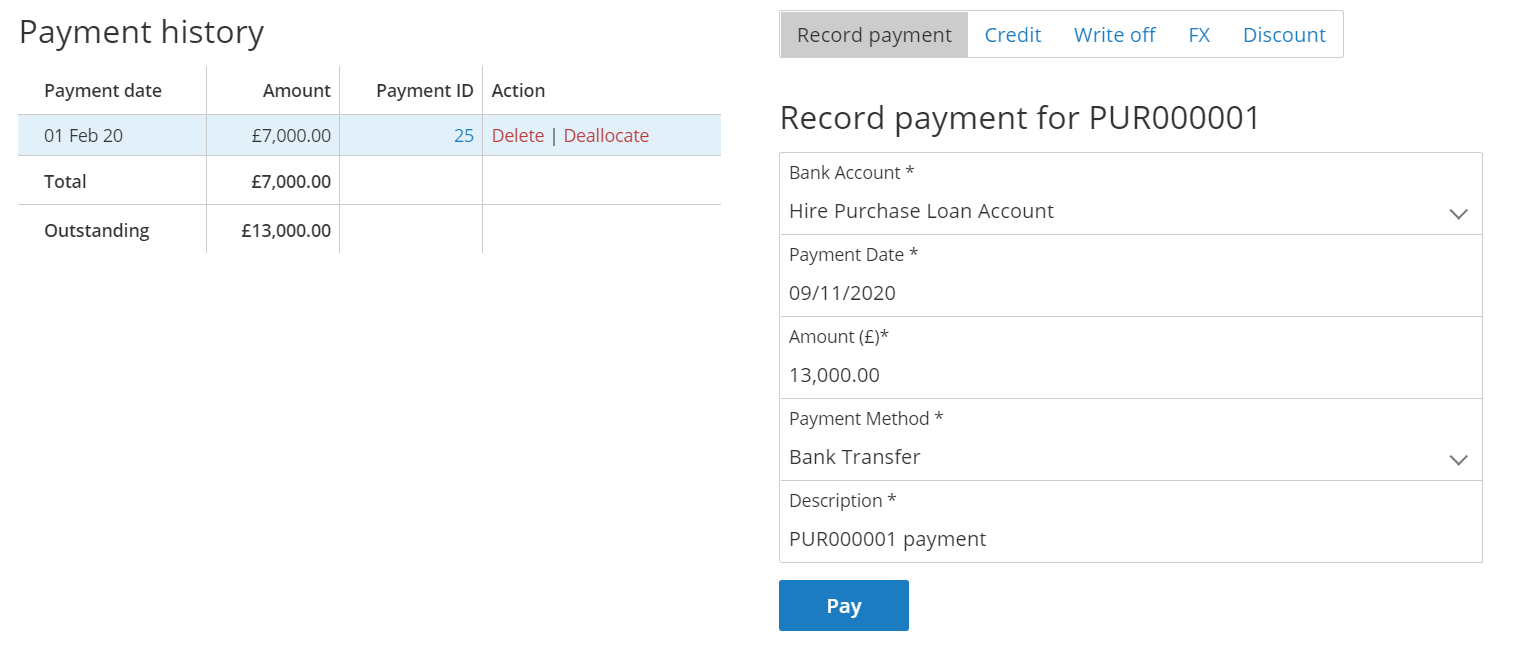
Head to Purchases > Bills and click into the Bill number of the original purchase. Then, use the Record Payment form located at the bottom to pay off the remaining outstanding amount using the Hire Purchase loan account, and hit Pay.
Step 5: Process Your Monthly Repayments
For the monthly hire purchase payments, you can process these as transfers. Head to Money > Bank Accounts, click Transfer beside your Business Bank account, and enter the amount. Hit Transfer Money, select the Hire Purchase loan account in the "Transfer to" dropdown, and hit Confirm Transfer.
Step 6: Log Interest Charges via Journal Entry
For interest payments, you can process this under Tools > Journals > All Journals > Create Journal.
Note: You may need to speak to an accountant to confirm which exact account codes to use for this entry.
Was this article helpful?
That’s Great!
Thank you for your feedback
Sorry! We couldn't be helpful
Thank you for your feedback
Feedback sent
We appreciate your effort and will try to fix the article