The help guide series for our Full Accounting productIf your Clear Books bank balance doesn't match your actual bank statement, you can perform a manual reconciliation to track down missing or duplicate transactions.
Pro Tip: Always begin your comparison from the earliest month where the Clear Books opening balance matches your actual statement, but the closing balance does not.
Phase 1: Locate the Discrepancy
1. Navigate to Money > Bank accounts.
2. Click on the balance of the account that needs reconciling.
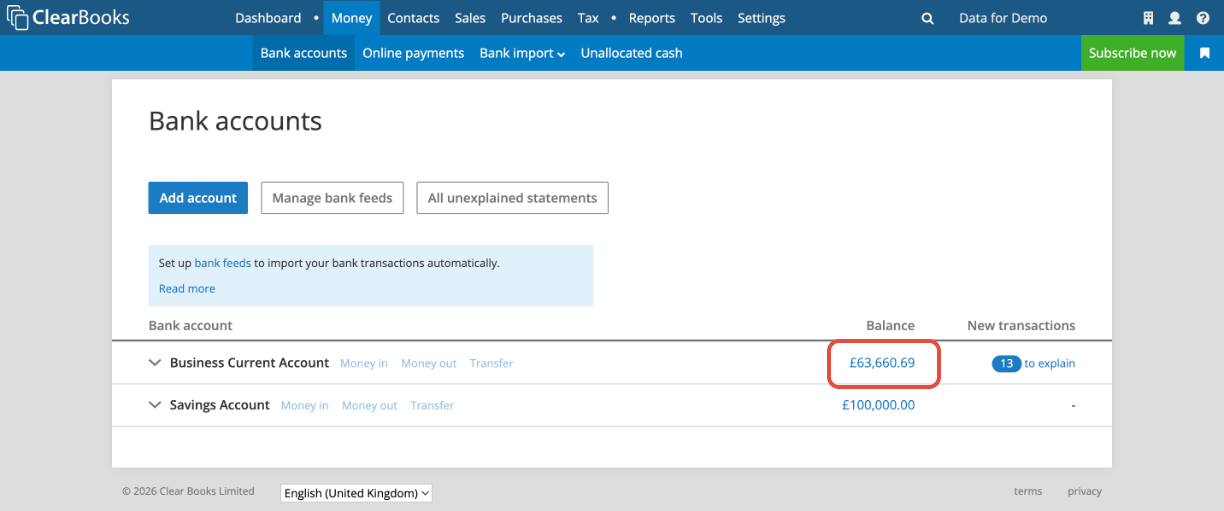
3. Use the Choose a month drop-down menu to select the most recent month.
4. Compare the opening balance of this month in Clear Books against the opening balance on your actual bank statement.
If it matches: You are in the right place. Move to Step 5.
If it doesn't match: Select the previous month from the drop-down menu and check again. Work backward until you find the month where the opening balances match.
Phase 2: The Reconciliation Process
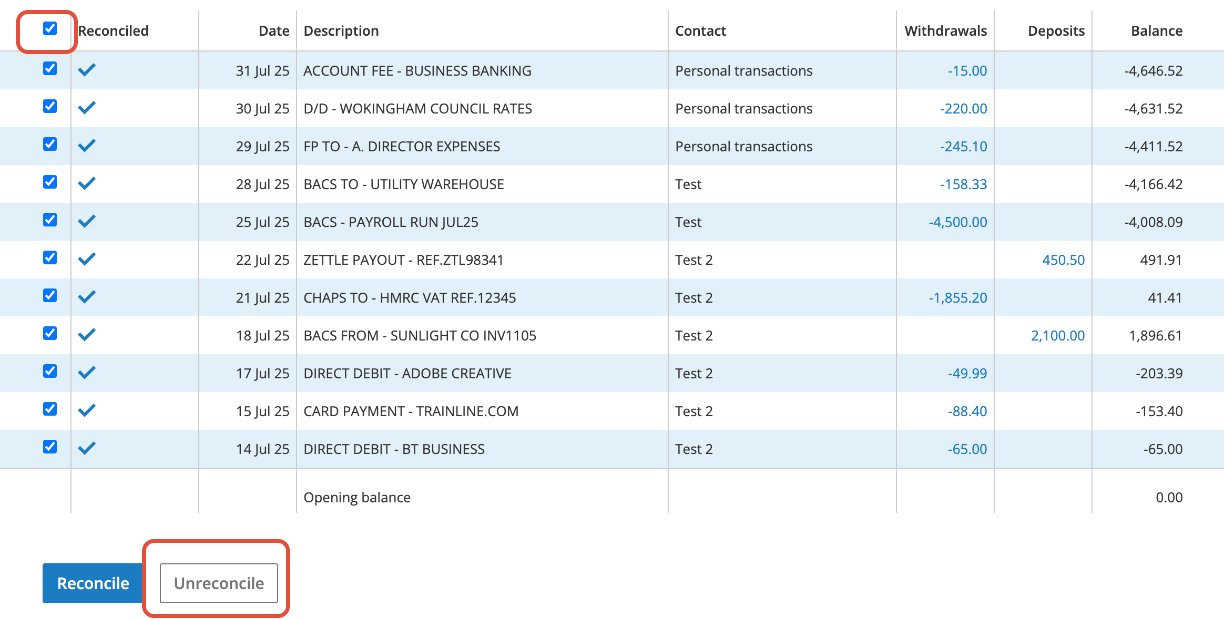
5. Once you are in the correct month, clear the slate by selecting the master checkbox at the top of the transaction column and clicking the Unreconcile button.
6. Go through your actual bank statement line by line. When you find a matching transaction in Clear Books, check the box next to it and click the Reconcile button.
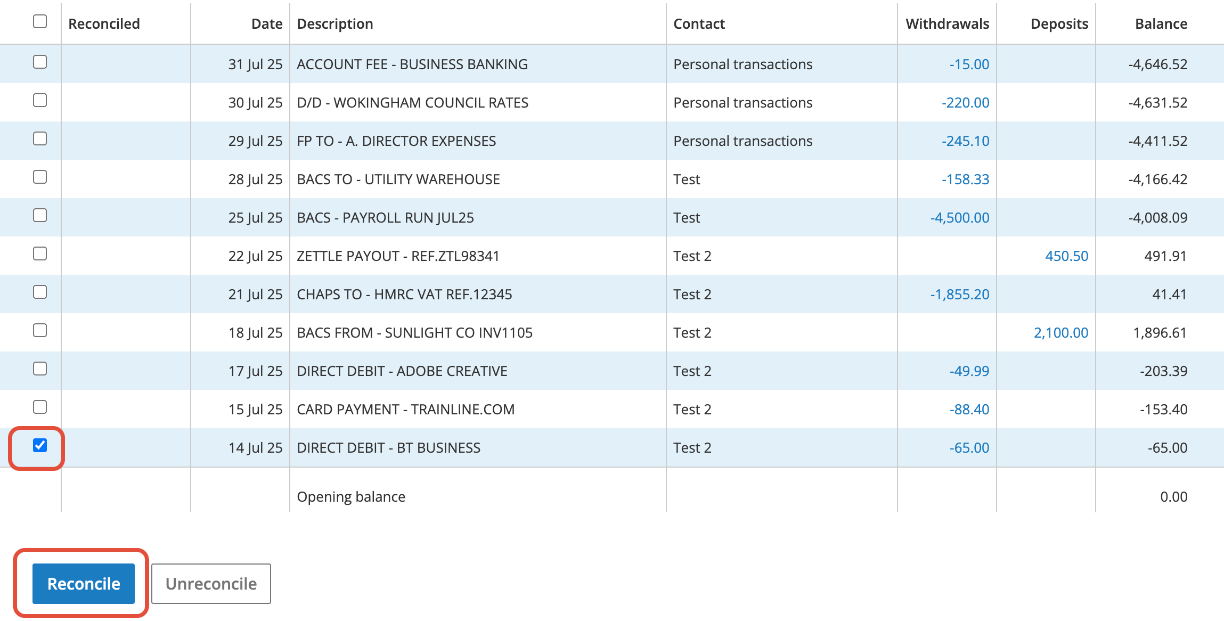
Note: Each successfully reconciled transaction will now display a blue tick in the Reconciled column.
Phase 3: Fixing Errors & Moving Forward
Working through Step 6 will naturally highlight any missing or duplicate transactions.
To delete duplicate transactions: Click on the transaction amount in the Withdrawals or Deposits column. You will be redirected to the payment details screen. From there, click the Delete button at the top of the menu.
Moving forward: As soon as the month has been fully reconciled and the closing balance matches your statement, select the next month. The opening balance should now be correct. If the closing balance is still off, simply repeat Steps 5 and 6 until your accounts are completely up to date.
Was this article helpful?
That’s Great!
Thank you for your feedback
Sorry! We couldn't be helpful
Thank you for your feedback
Feedback sent
We appreciate your effort and will try to fix the article