Agents can submit MTD for Income Tax on behalf of their clients. To do this, you will first need to link your client's Clear Books business account to their HMRC income source.
Step 1: Verify Your Client's HMRC Registration
Make sure your client is already signed up for MTD for Income Tax with HMRC before proceeding.
Step 2: Initiate the Connection in Clear Books
From within the client's business account in Clear Books, click on the MTD for Income Tax heading on the Dashboard and enter the client's National Insurance Number.
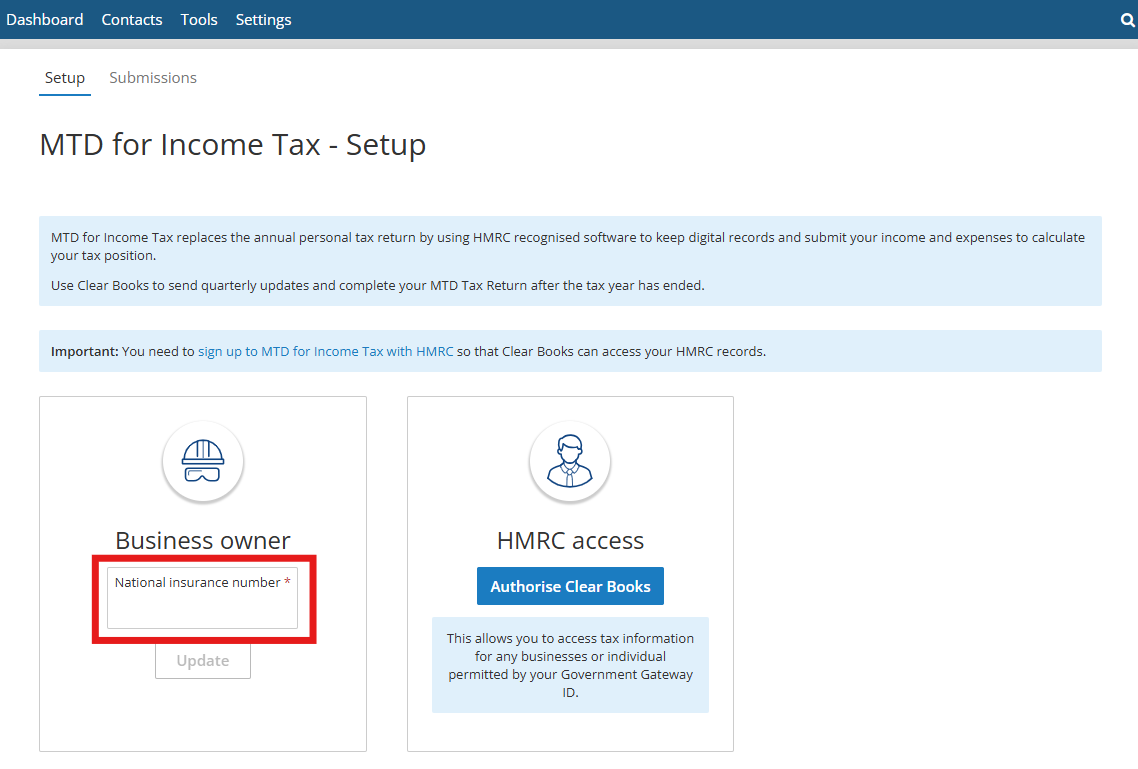
Step 3: Authorise Clear Books with HMRC
Next, you must authorise Clear Books to read and submit HMRC income tax information.
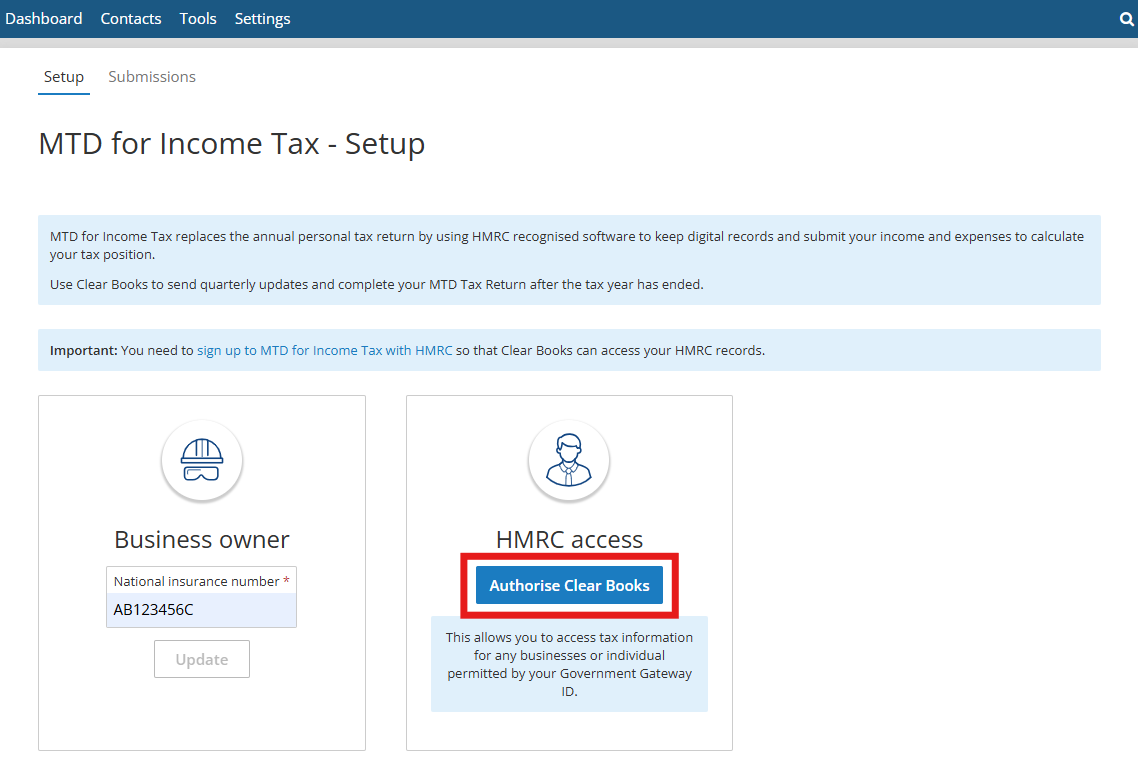
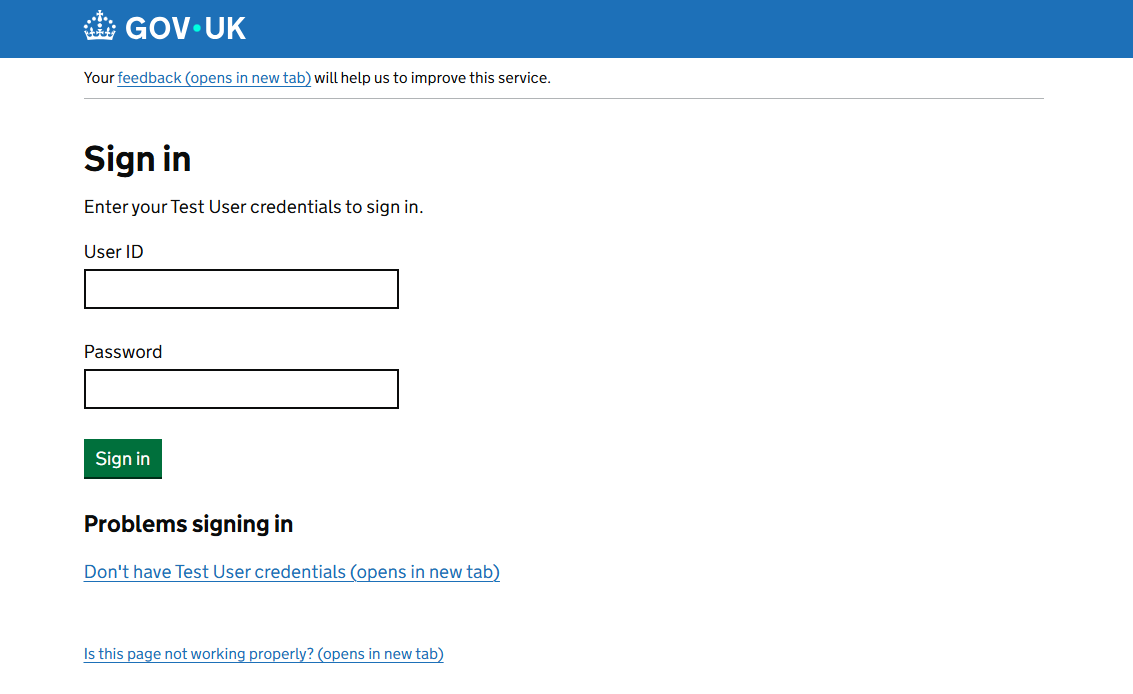
This will hand you over to HMRC’s secure authorisation process, where you will need to:
Enter the Government Gateway ID and password linked to your HMRC Agent Services Account (ASA).
Complete any necessary security or validation steps.
Note: You will only need to authorise Clear Books once. This authorisation is stored against your practice and provides access to MTD for Income Tax information for any clients who have given you authority to act for them in your ASA. You will not need to re-authorise when connecting other Clear Books client businesses or their MTD Tax Returns.
Next Steps: Selecting an Income Source
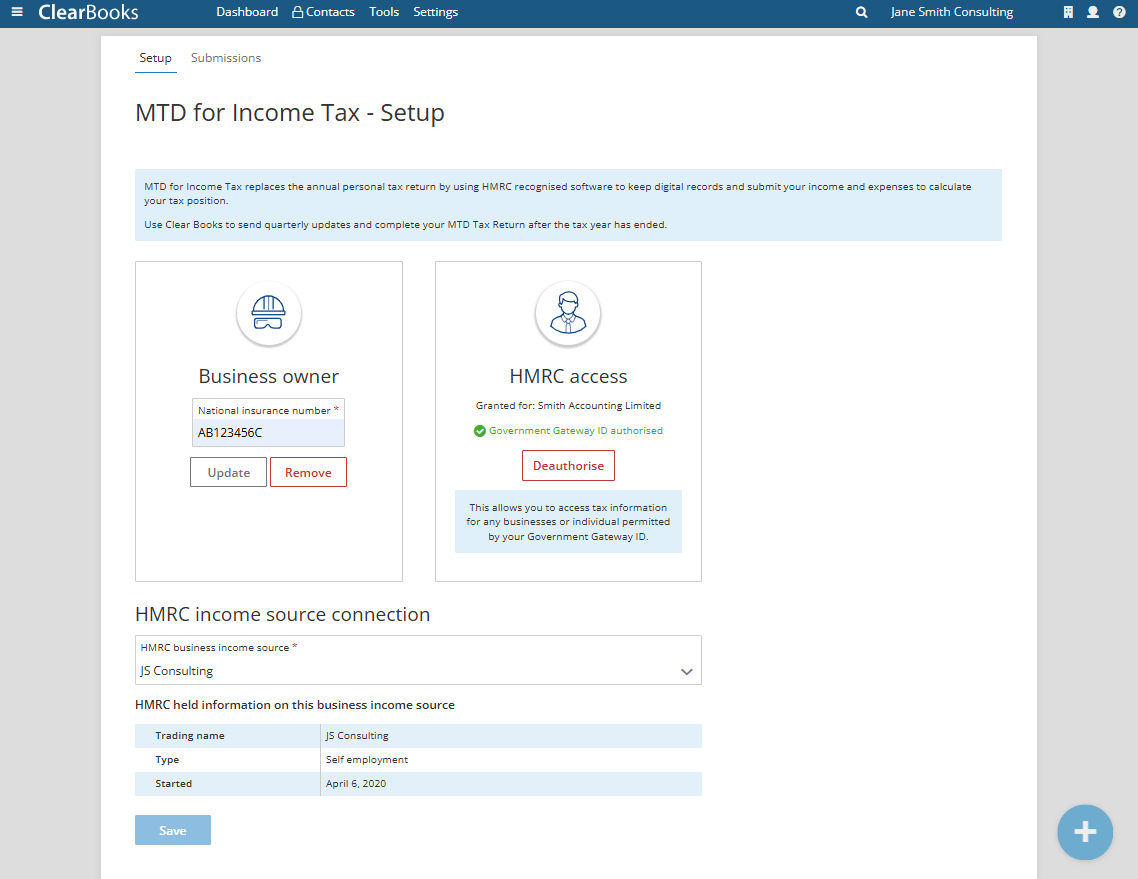
When the HMRC authorisation process is complete, Clear Books will automatically look up your client's HMRC income sources. If they have more than one self-employment income source, you will be prompted to select which one you want to connect to the current Clear Books business.
Was this article helpful?
That’s Great!
Thank you for your feedback
Sorry! We couldn't be helpful
Thank you for your feedback
Feedback sent
We appreciate your effort and will try to fix the article