Help guide series for our Basic Accounting productNote: All tax return information is retrieved from HMRC. Some information will be pre-populated already where HMRC already holds this data via in-year submissions. For example, employment income and CIS deductions.
Step 1. MTD income sources
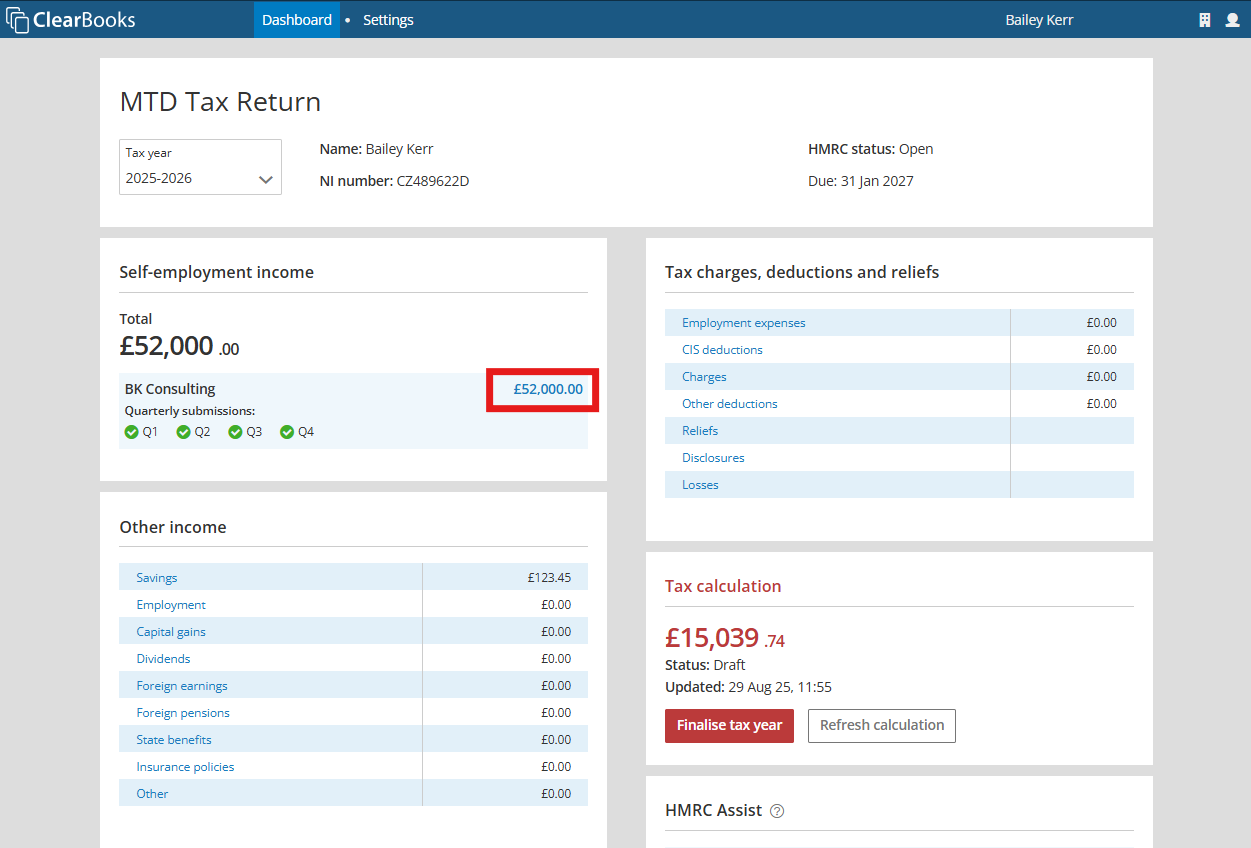
Use your MTD Tax return to check your final year end information and profit for each income source by clicking the amount.
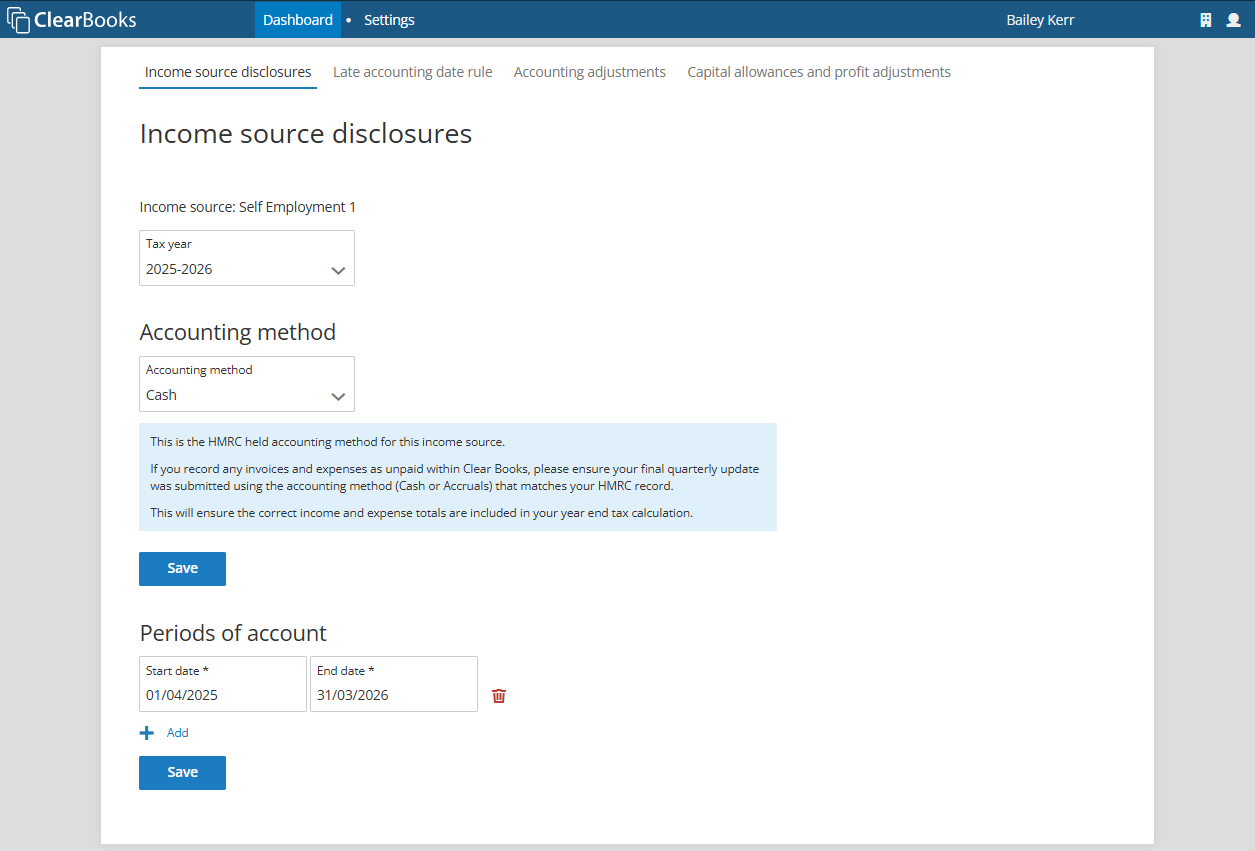
Review the HMRC held information about the income source, and enter your period of account on the Income source disclosures page.
Use the Accounting adjustments page to review and adjust the income and expense totals from your latest digital records quarterly update.
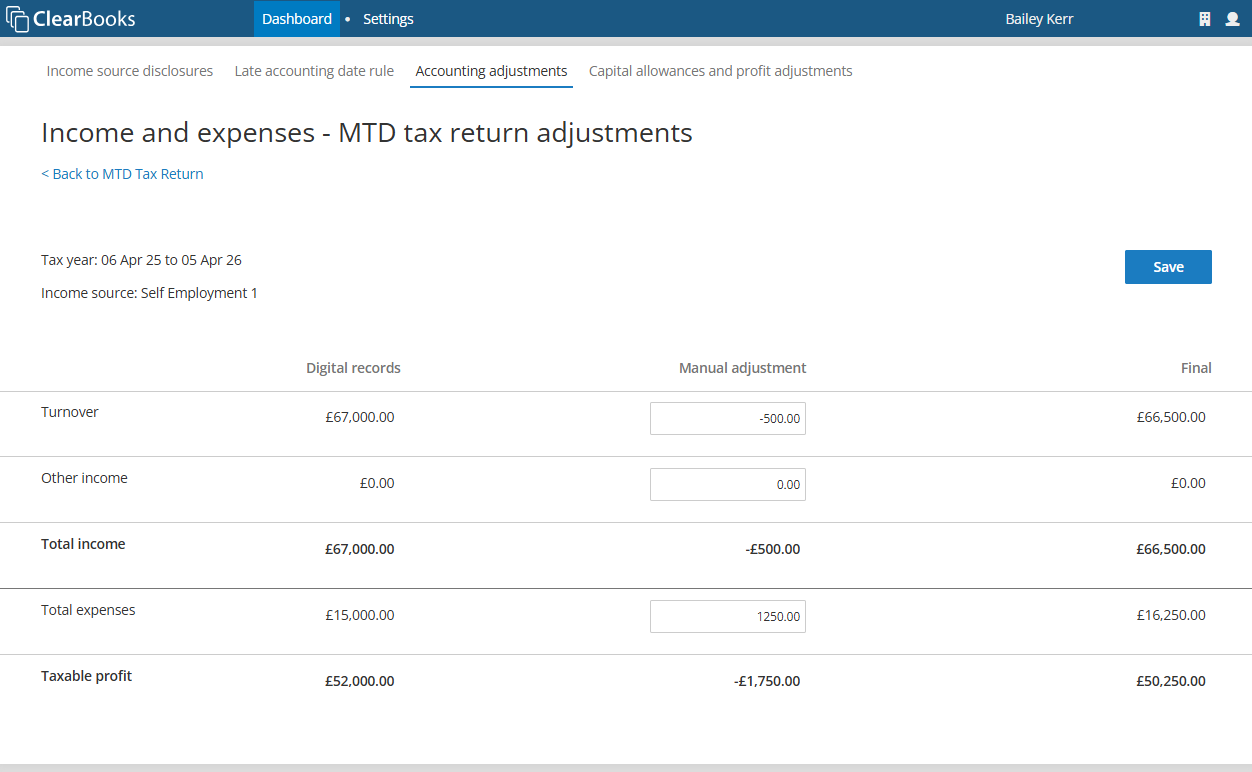
Note: You can resubmit your final quarterly update as many times as you like to ensure your tax return is based on your latest and most accurate digital record totals.
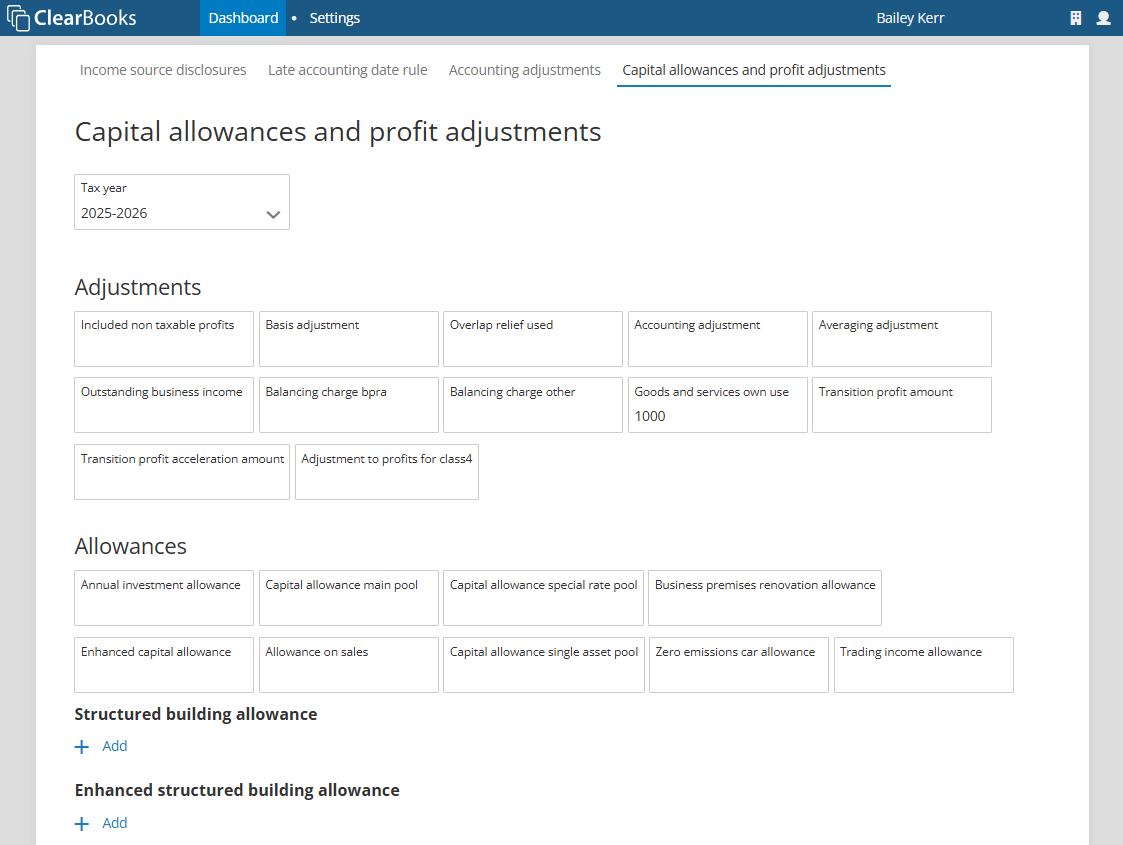
If applicable, enter any further adjustments and capital allowances on the Capital allowances and profit adjustments page.
Step 2. Other income
Use the links in the Other income section to review and enter any income not from self-employment or property.
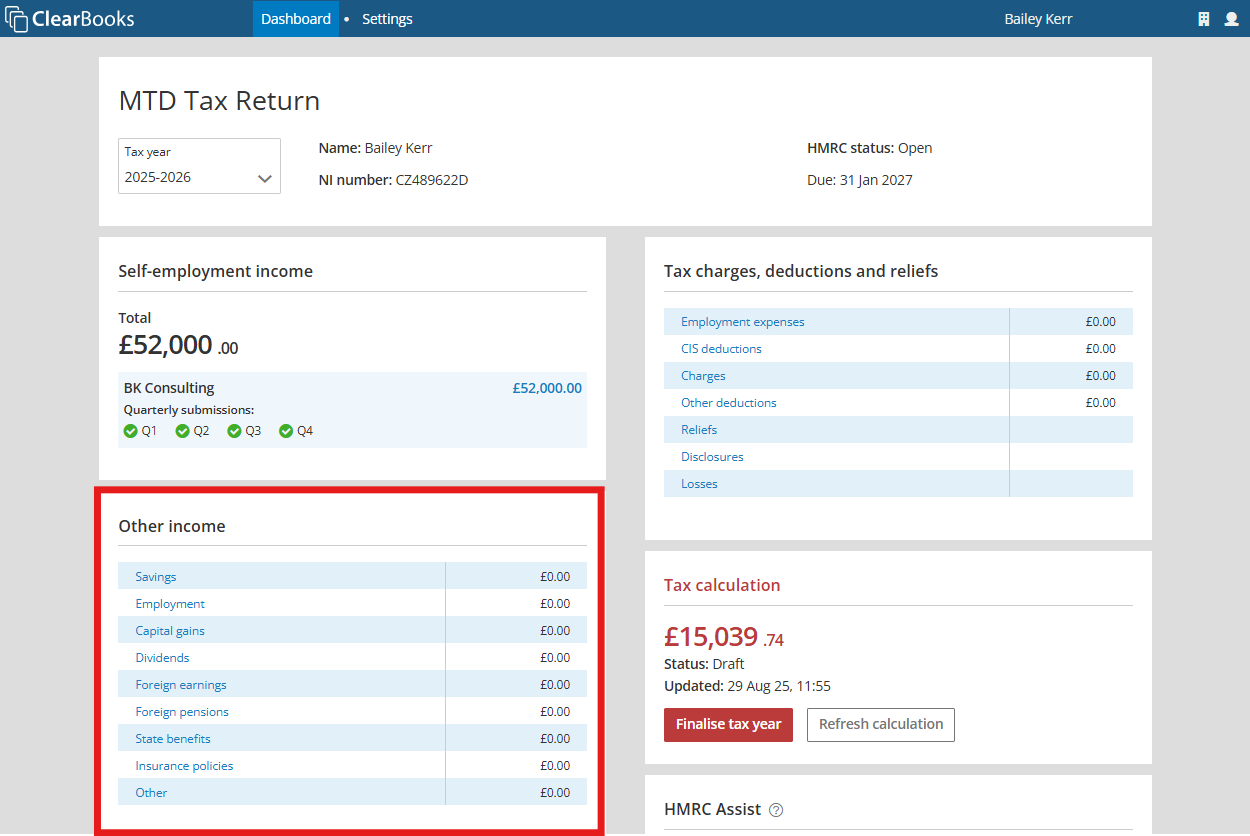
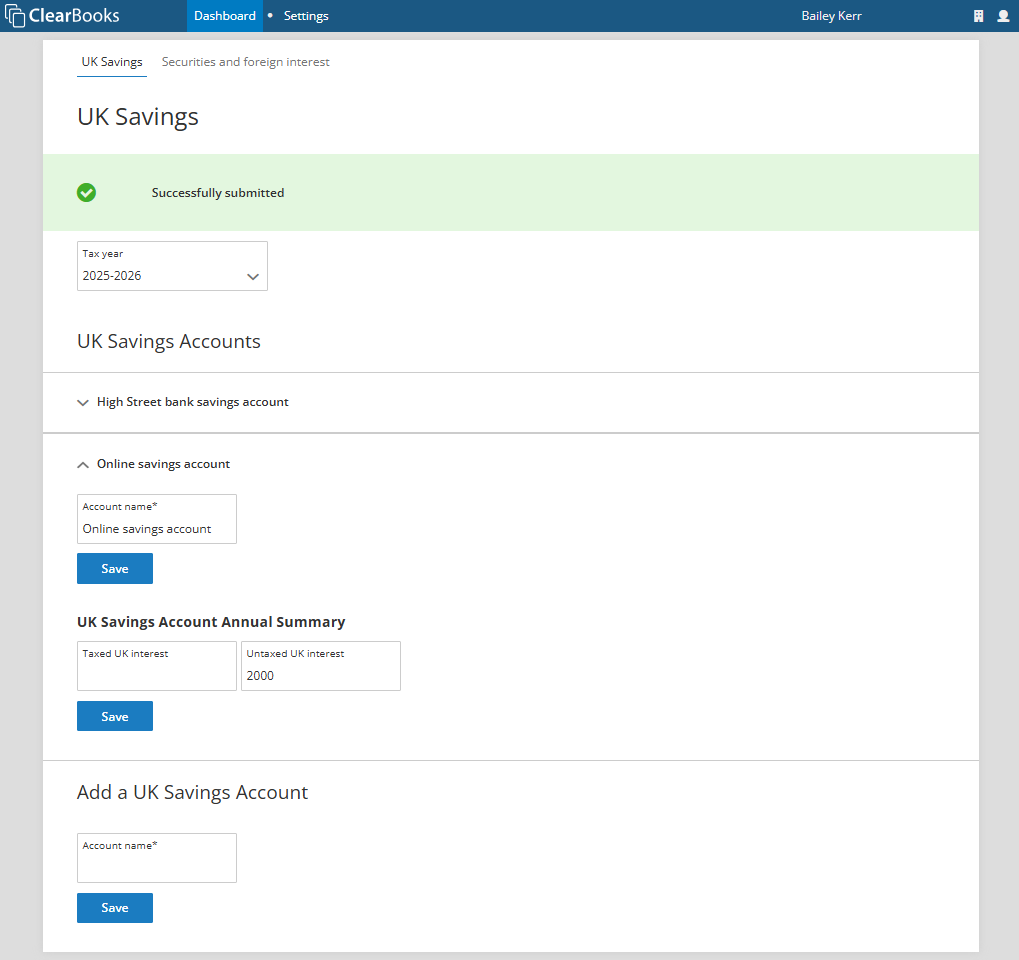
On each Other income page, enter any relevant income and use Save to submit the information to HMRC.
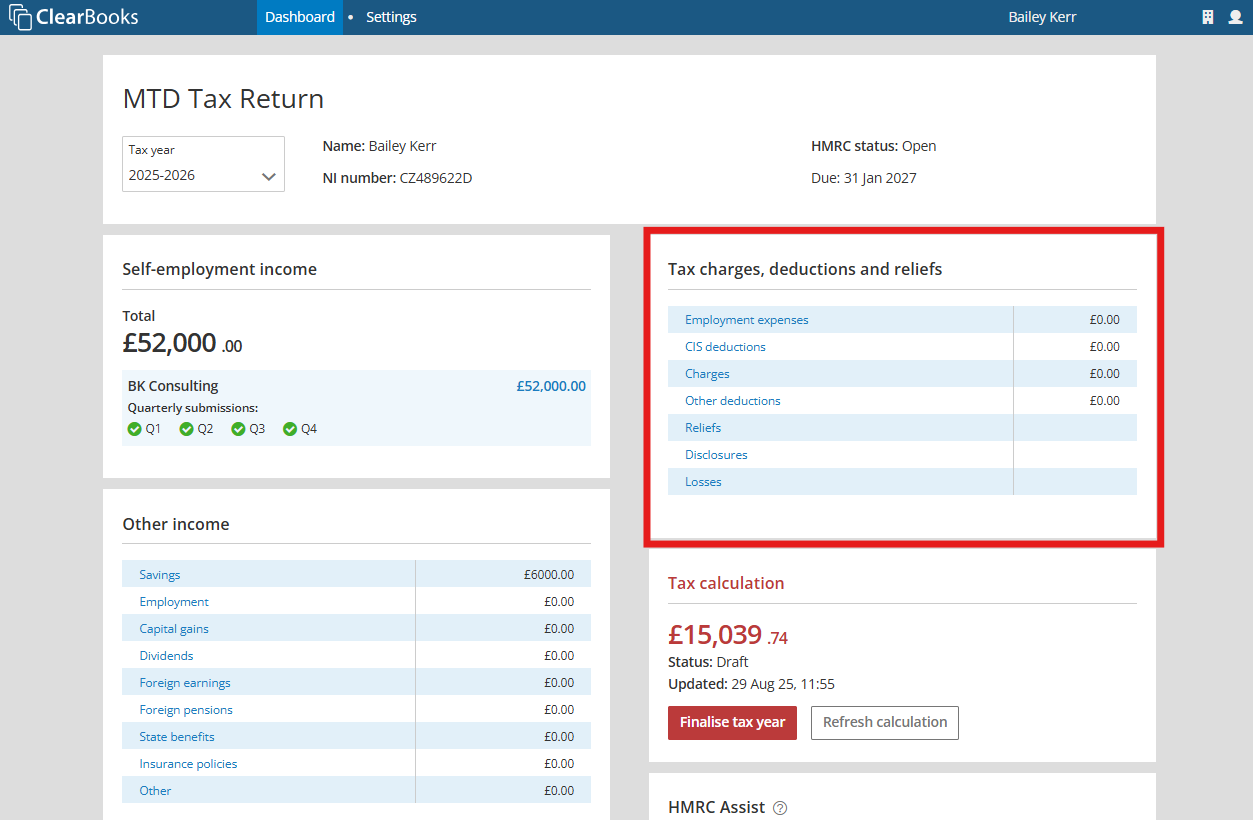
Step 3. Tax charges, deductions and reliefs
Use the Tax charges, deductions and reliefs section to enter your remaining tax return information. For example, charitable giving and pension contributions.
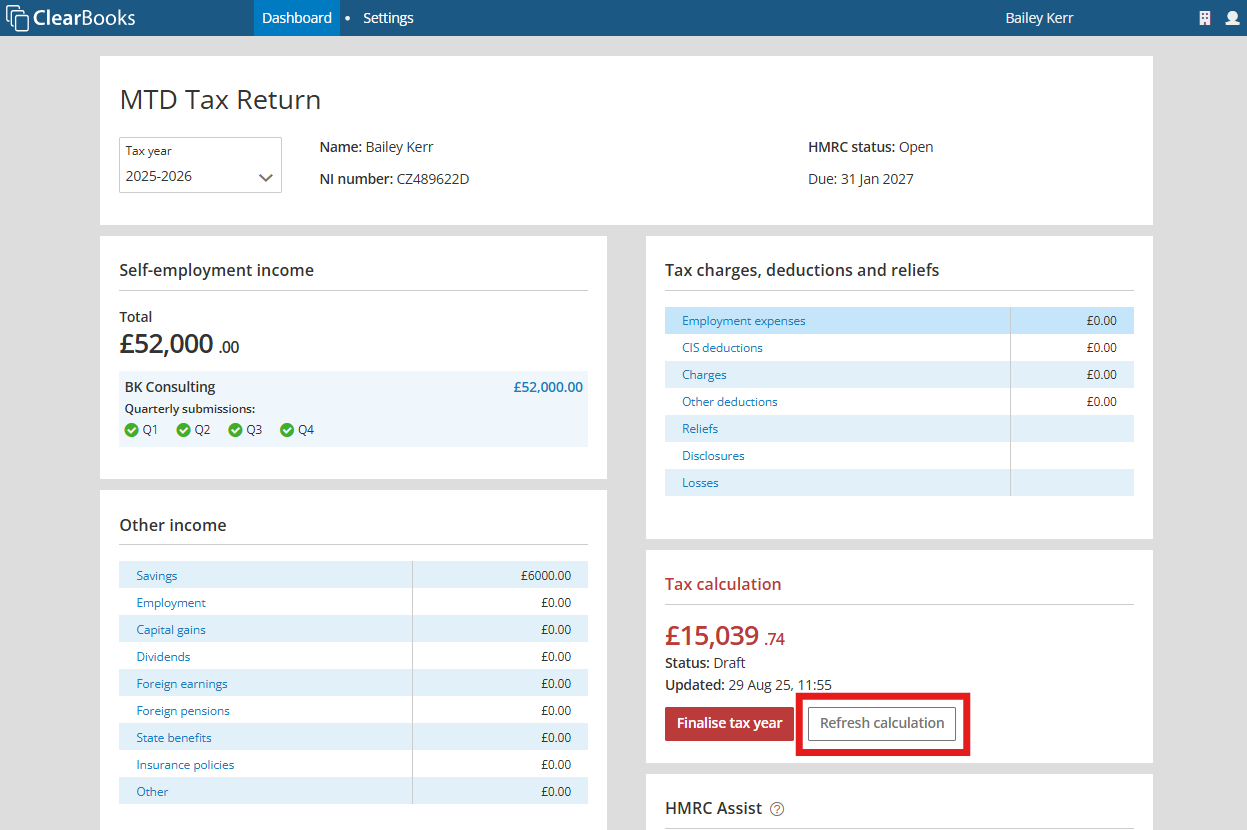
Step 4. Reviewing the calculation
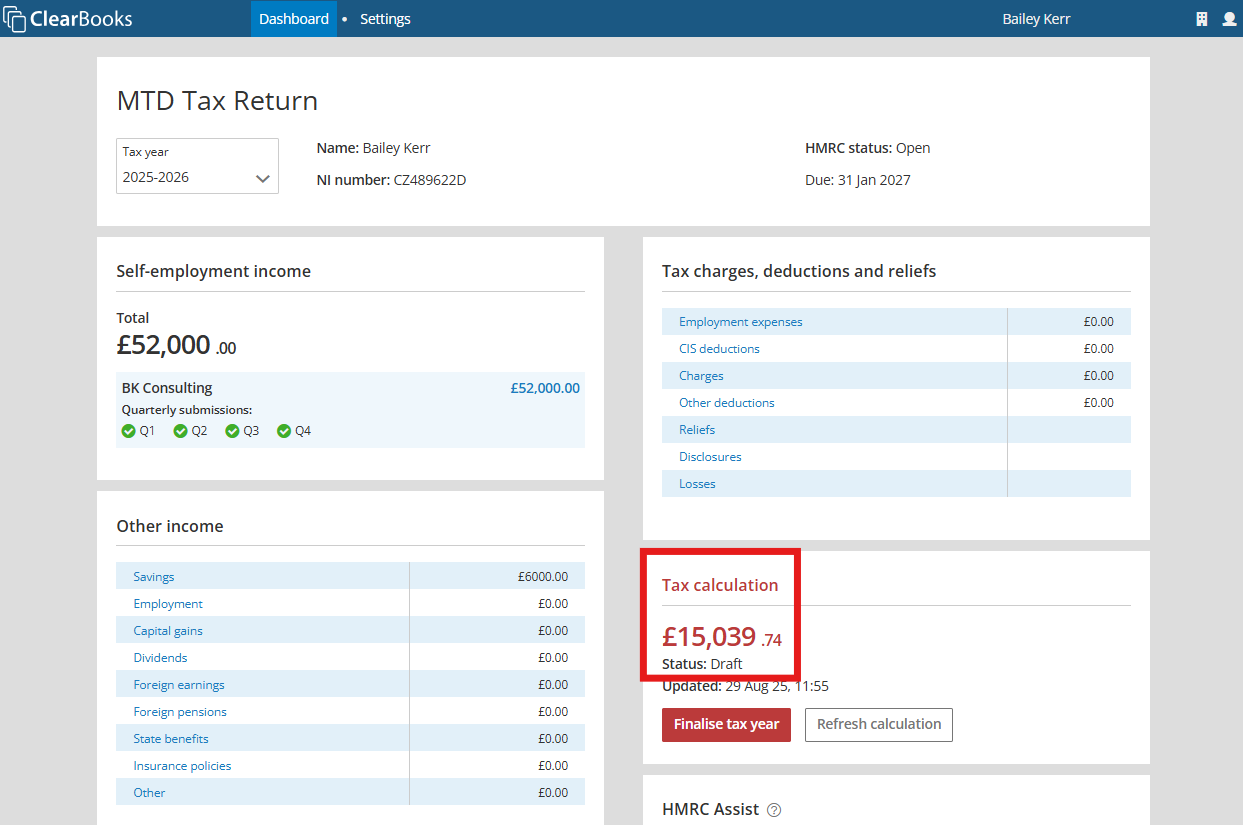
Use the Refresh Calculation button on the MTD Tax Return to generate a new tax calculation from HMRC and update the dashboard with all your latest submissions.
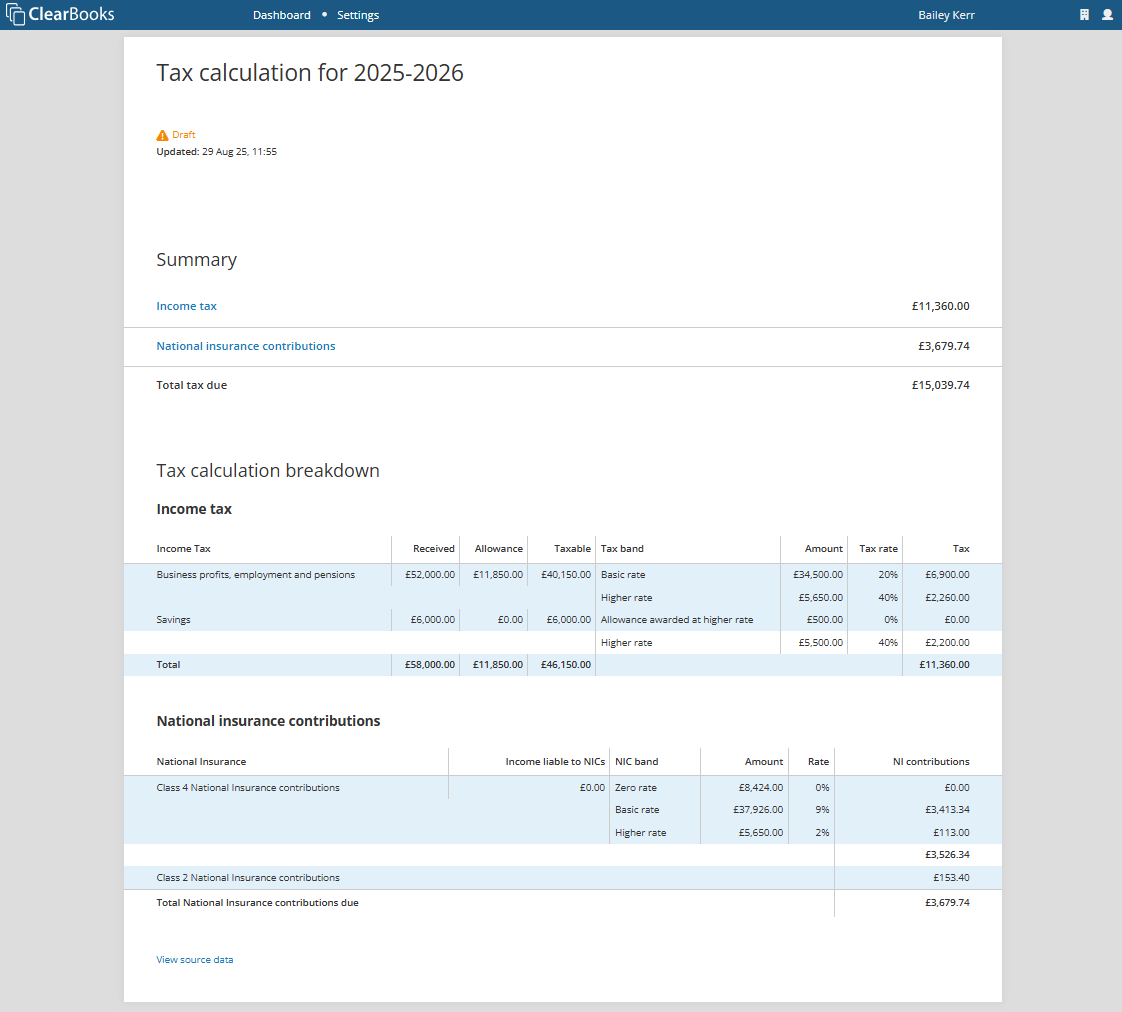
Click on the Tax calculation title or amount to view a breakdown of your draft tax calculation.
Step 5. Finalisation
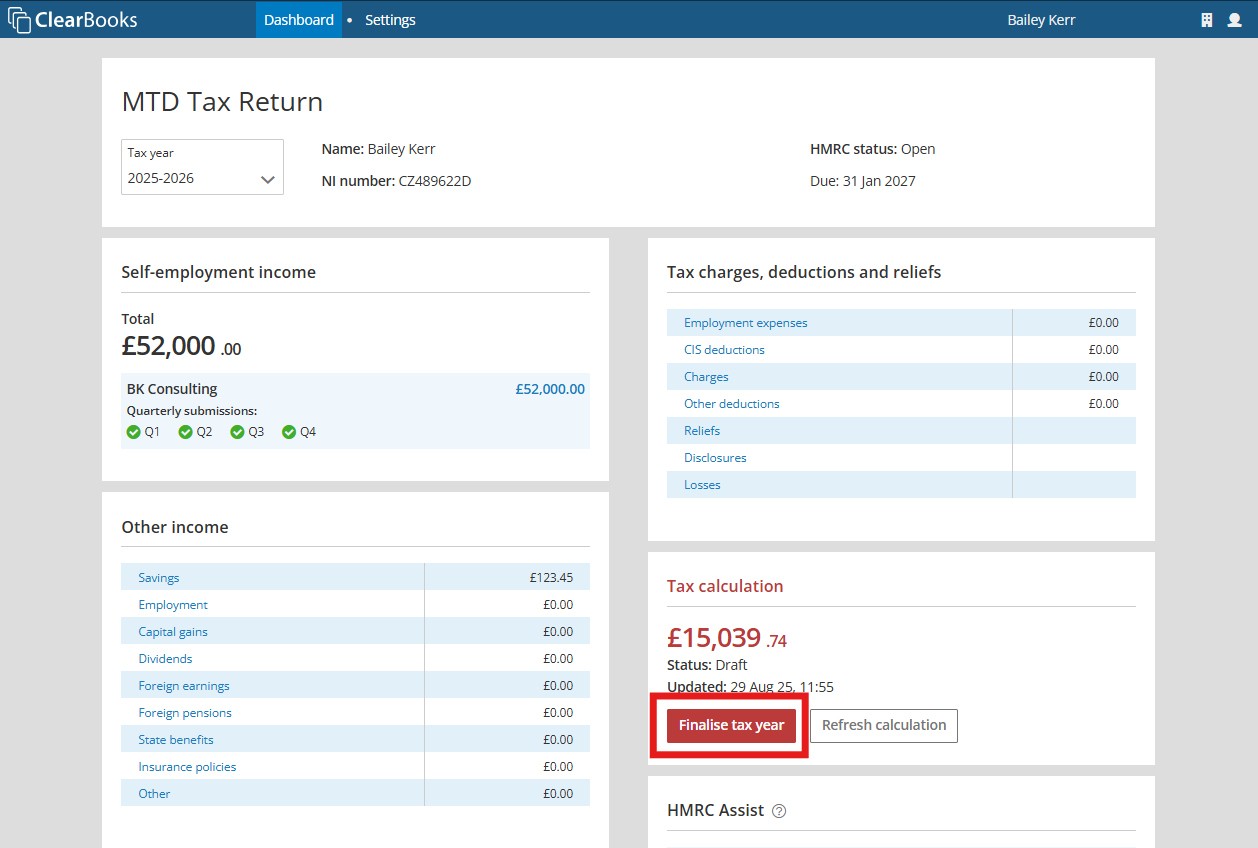
When you are happy that your tax calculation is complete, use the “Finalise tax year” button to review the calculation before finalising.
When you are ready to finalise, use the “Finalise tax position” button.
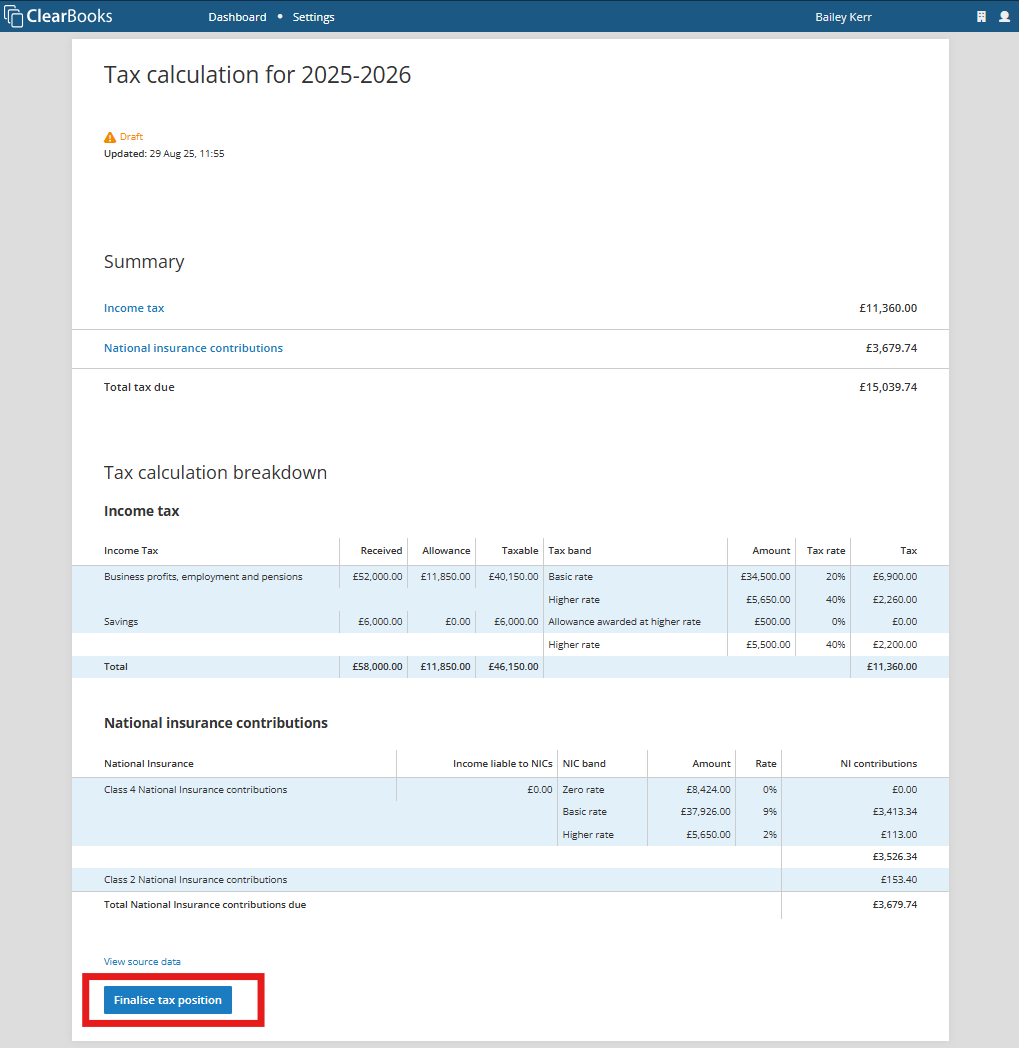
Confirm your information is correct and complete to enable the “Finalise tax position” button.
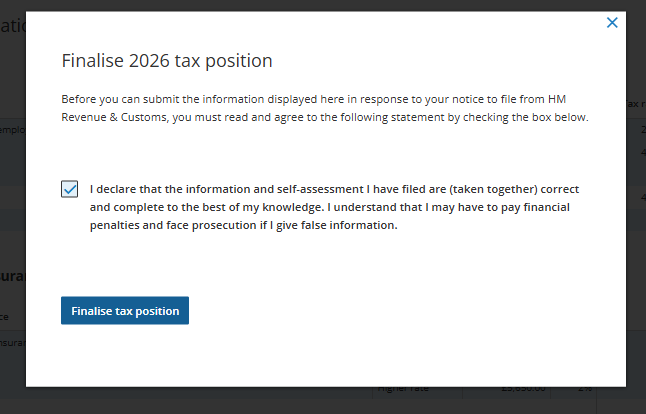
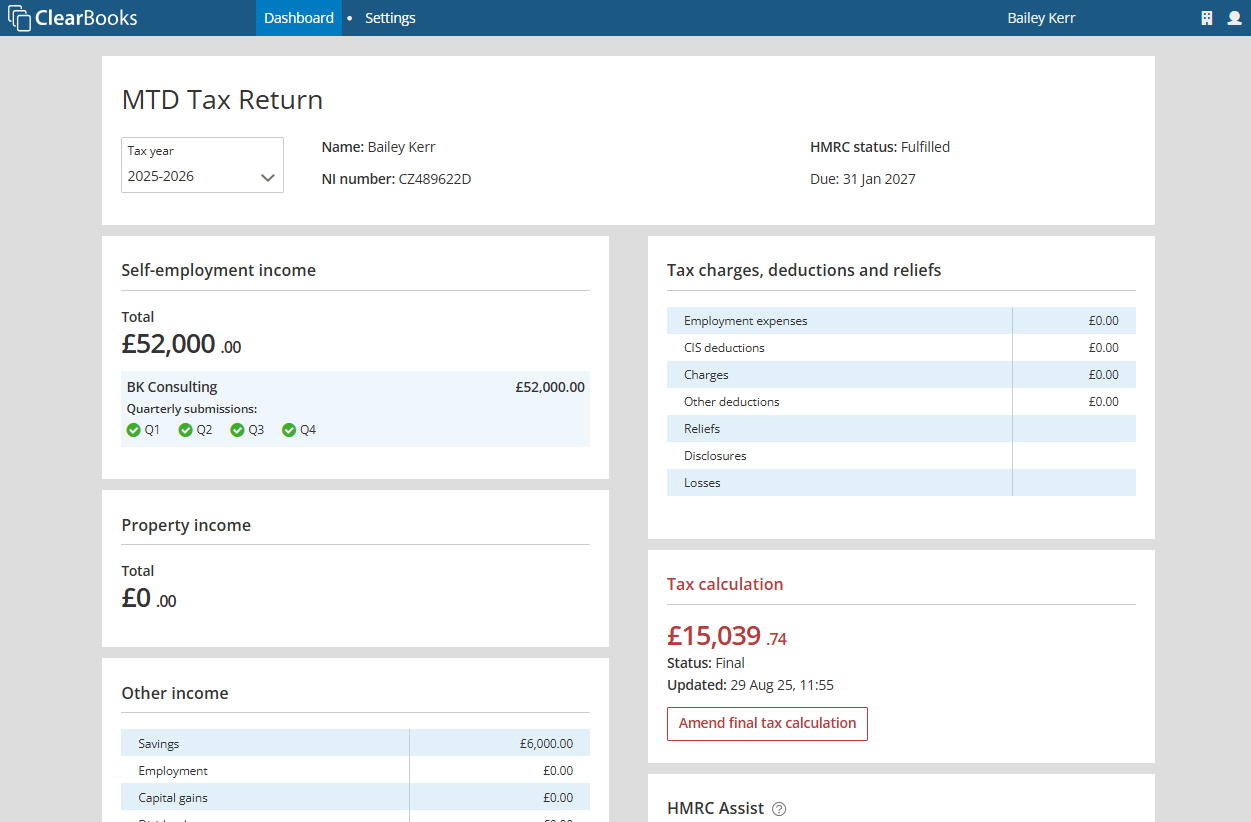
Click the “Finalise tax position” button to complete your MTD Tax Return. The HMRC status will be updated to show the tax year obligation as being fulfilled.
Was this article helpful?
That’s Great!
Thank you for your feedback
Sorry! We couldn't be helpful
Thank you for your feedback
Feedback sent
We appreciate your effort and will try to fix the article