Welcome to the help guide series for our Auto Bills productPractice Edition is a practice only access subscription for Clear Books meaning the client cannot use the software to manage their business themselves. However, if the business has an Auto Bills subscription, the client can be invited to the Clear Books business so they can upload or send purchase invoice PDFs and receipt photos, directly to Clear Books.
Auto bills will analyse each file to extract the date, supplier, invoice number, amount and VAT where applicable, ready for a practice user to review and save.
Practice user - Inviting client user
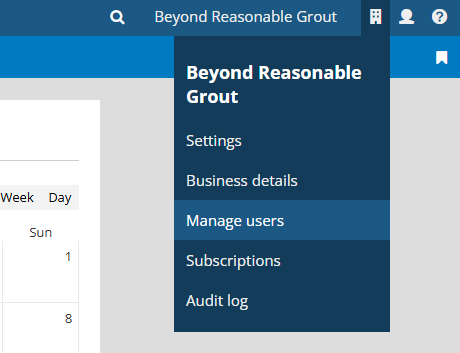
To invite the client user to Clear Books, go to “Manage Users” under the business menu.
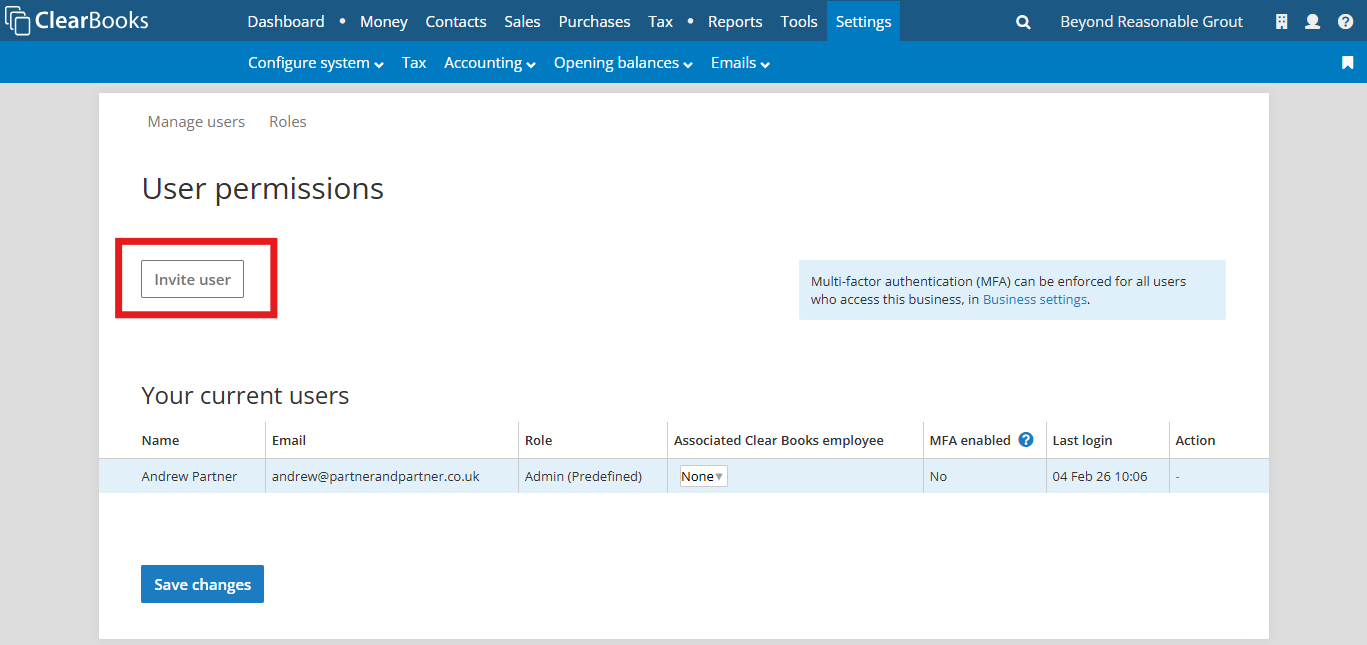
Select the “Invite user” button
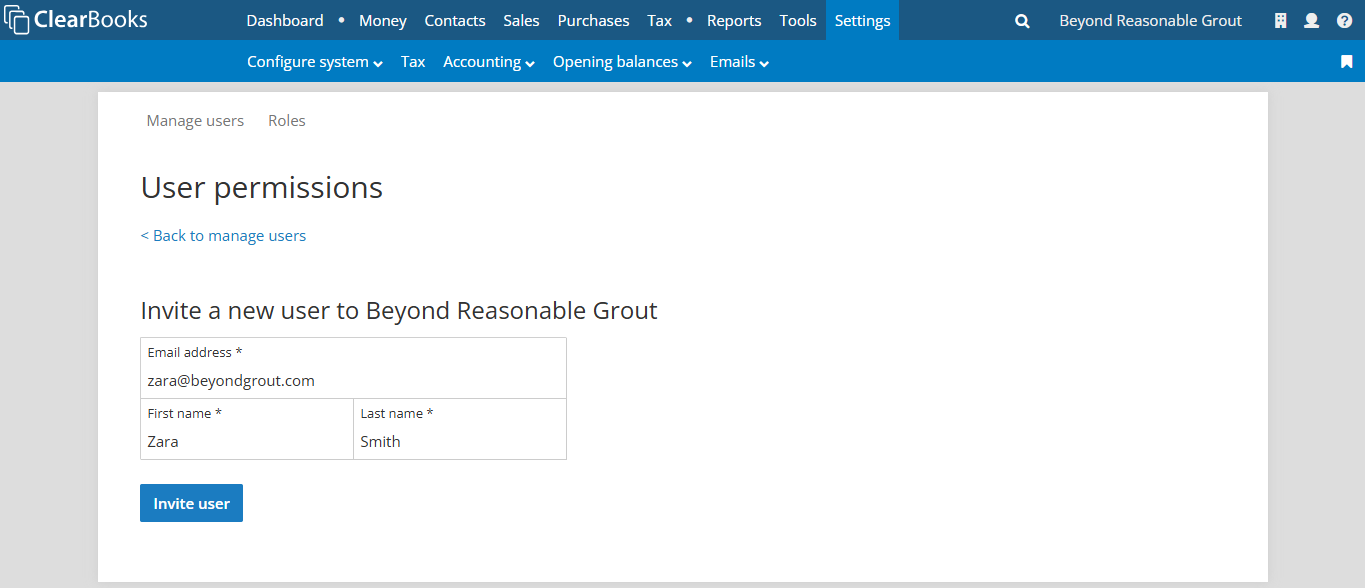
Enter the client user’s name and email address and select “Invite user”
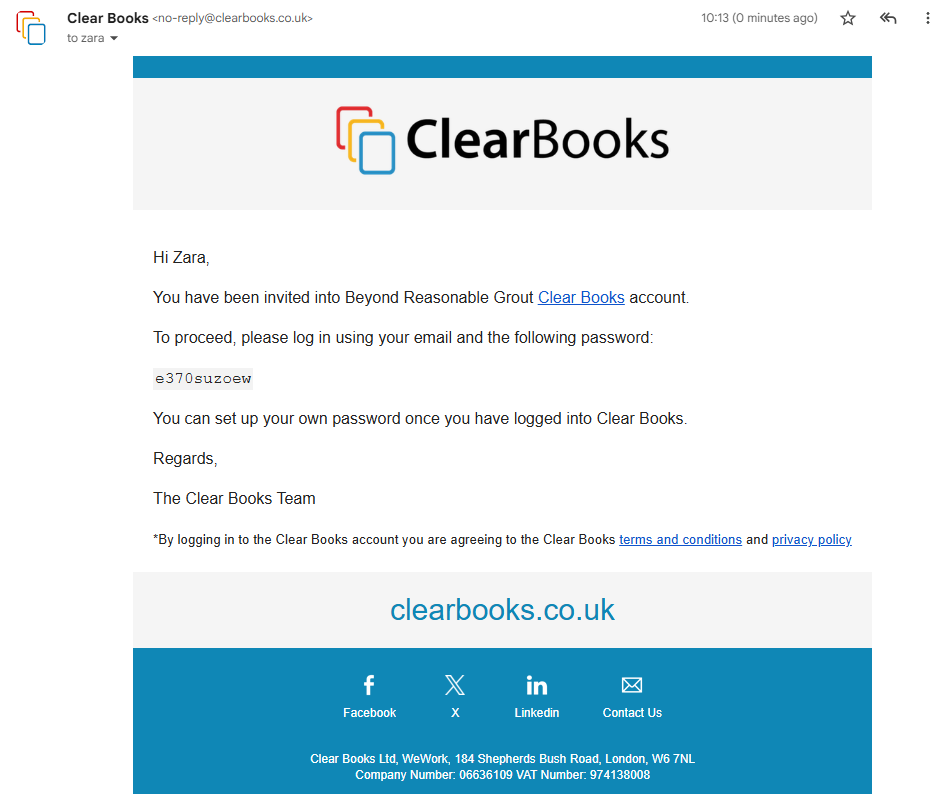
The client user will receive an invite email with a temporary password.
Client user - Sending purchases to Clear Books
The client user can send purchase invoices and receipt photos to Clear Books in three ways:
Upload files directly into the bills inbox
Email files to their bills inbox email address
Take photos of documents and receipts via the Clear Books mobile app
Client user - Upload files directly to the bills inbox
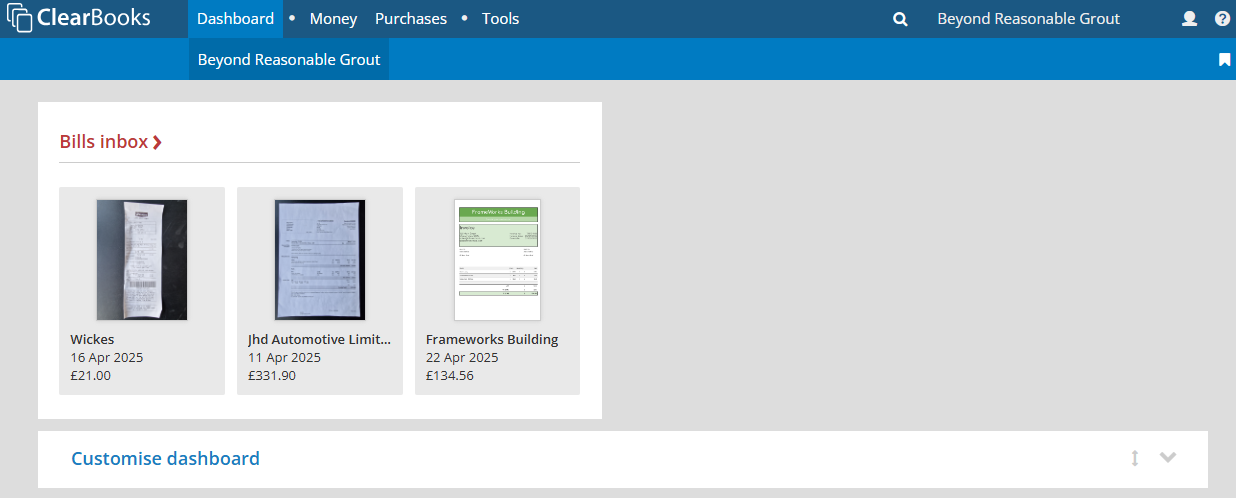
After logging in to Clear Books on a desktop or mobile device browser, the Practice Edition client user will see the bills inbox widget on the dashboard.
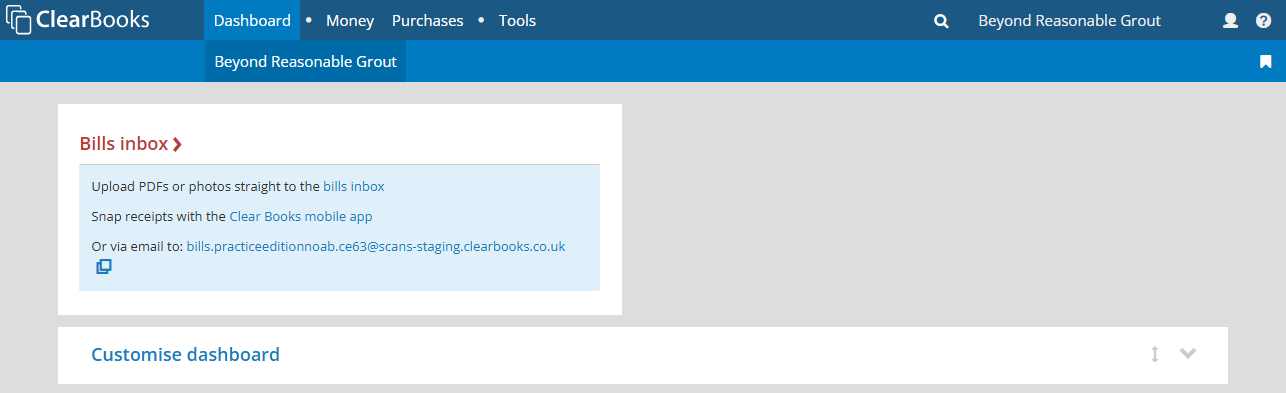
Select the widget title to navigate to the bills inbox.
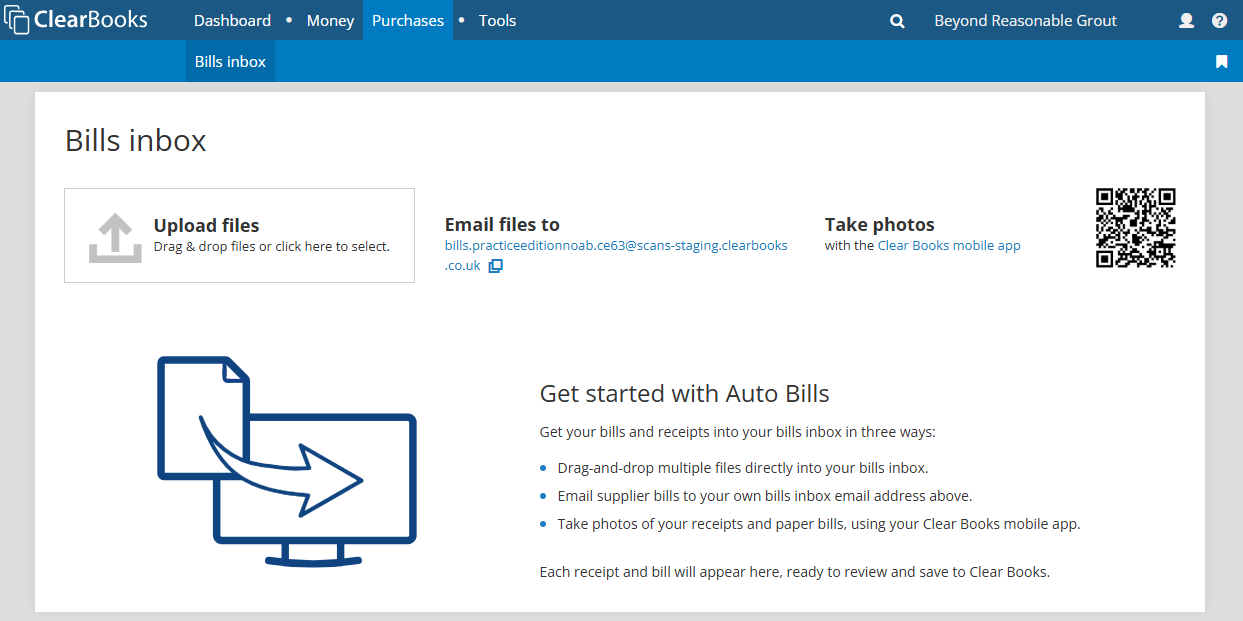
Files can be drag-and-dropped into the “Upload files” box, or click the box to open a file browser to select files to upload.
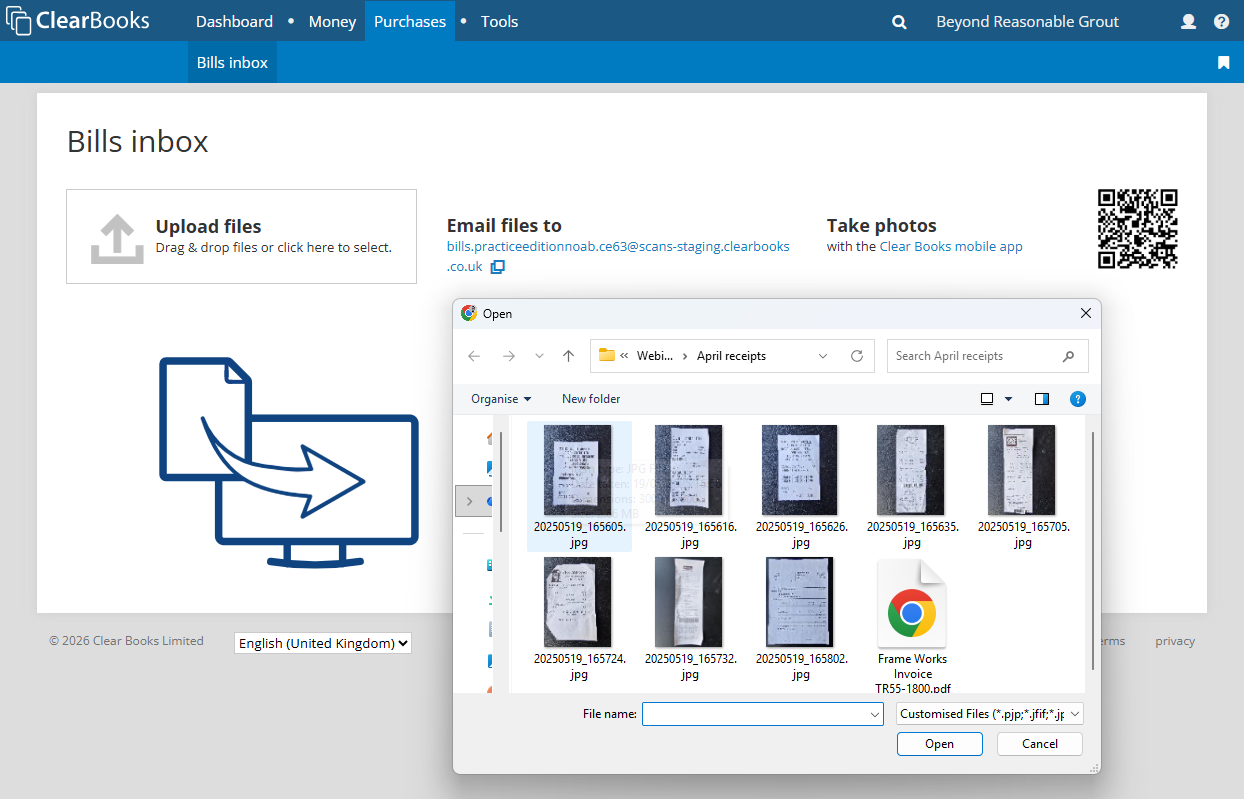
The selected files will be uploaded to the bills inbox and be analysed immediately.
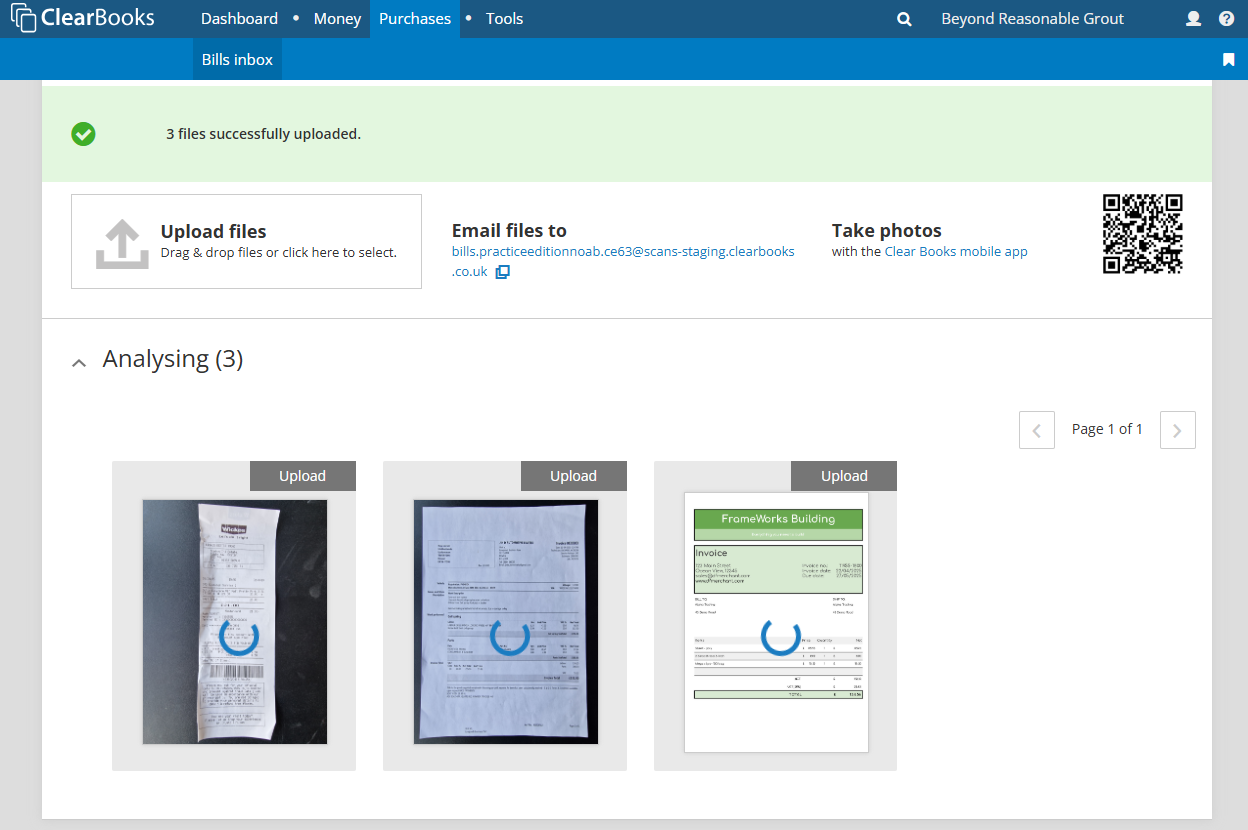
Analysis will complete in a few seconds and the files will be ready for the practice user to review and save.
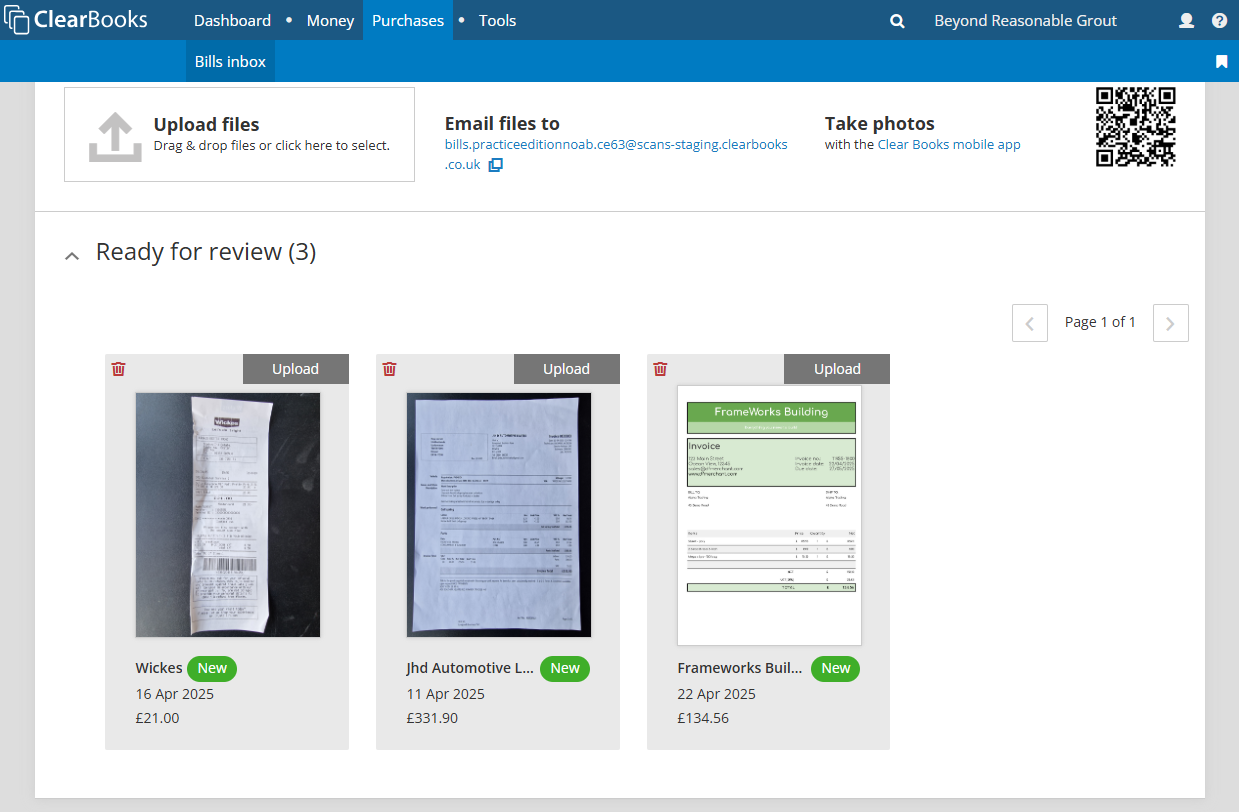
The dashboard will show the uploaded files also.
Client user - Email files to the bills inbox
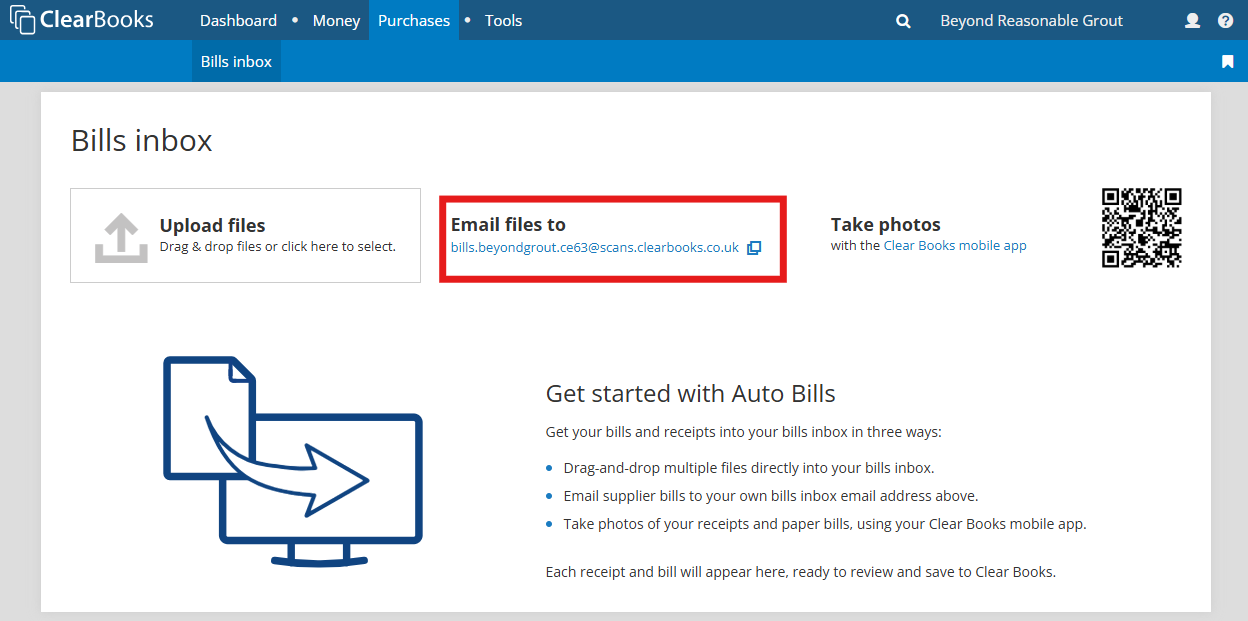
From any email application or browser, the client user can forward or send emails that contain purchase invoices in the email body or as an attachment, to the bills inbox email address for their Clear Books business.
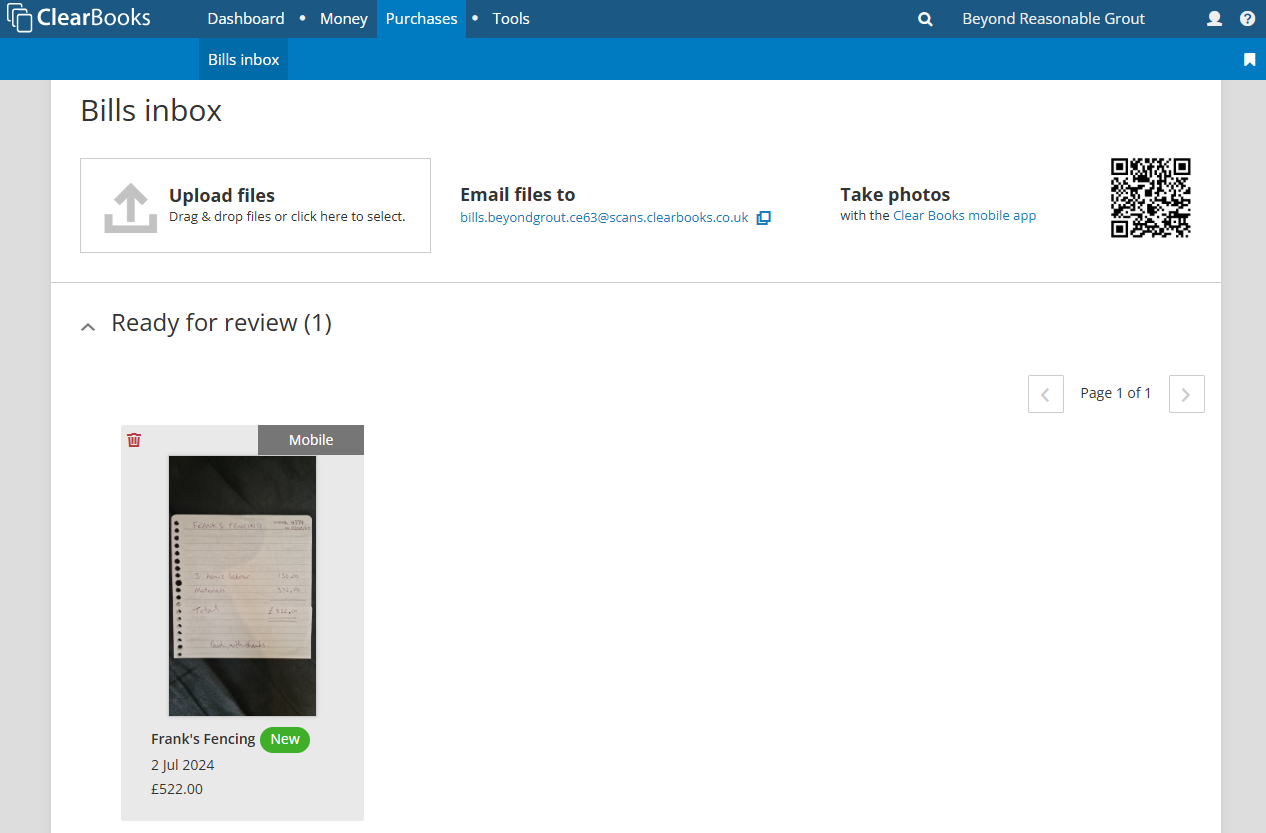
The email address is shown on the dashboard and in the bills inbox.
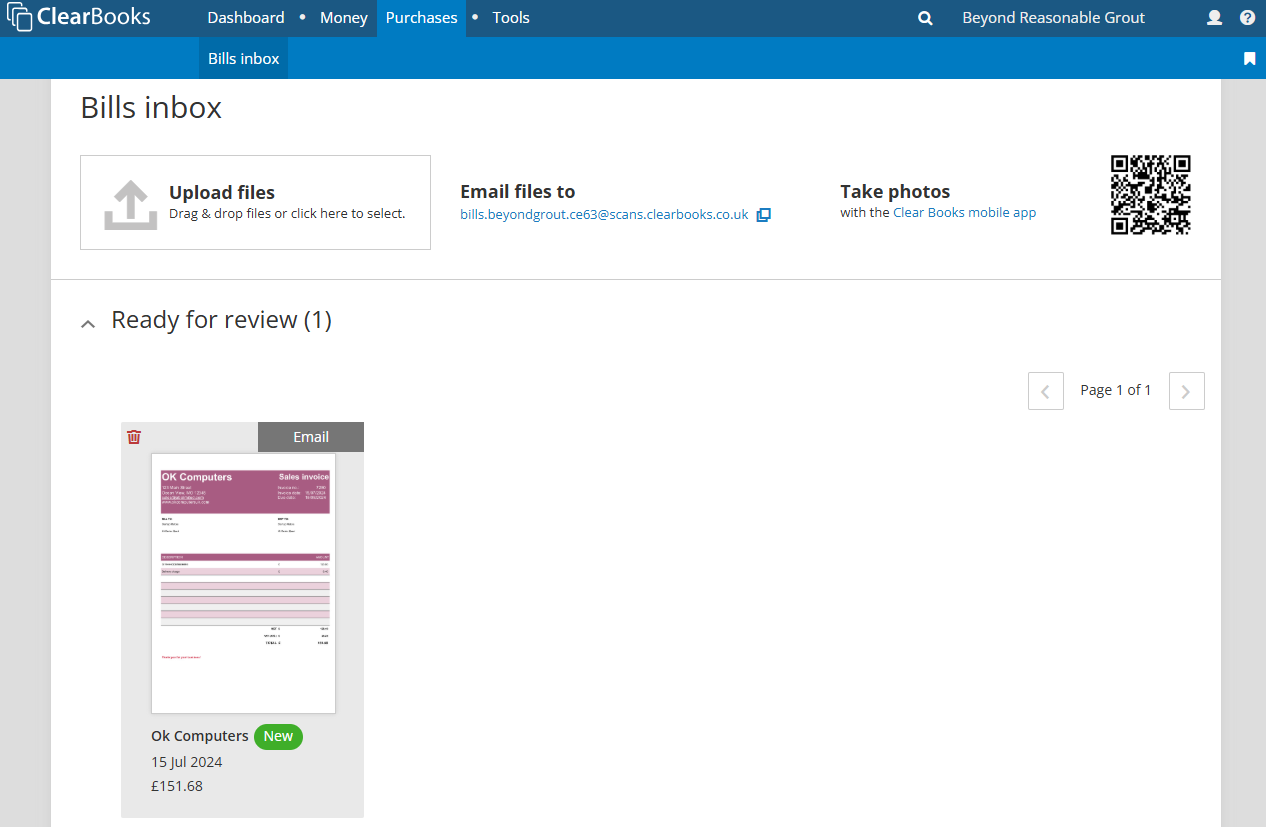
After the email has been received by Clear Books, it will appear in the bills inbox ready for the practice user to review and save.
Client user - Send photos from the Clear Books mobile app
Download the Clear Books mobile app from Google Play or Apple App Store.
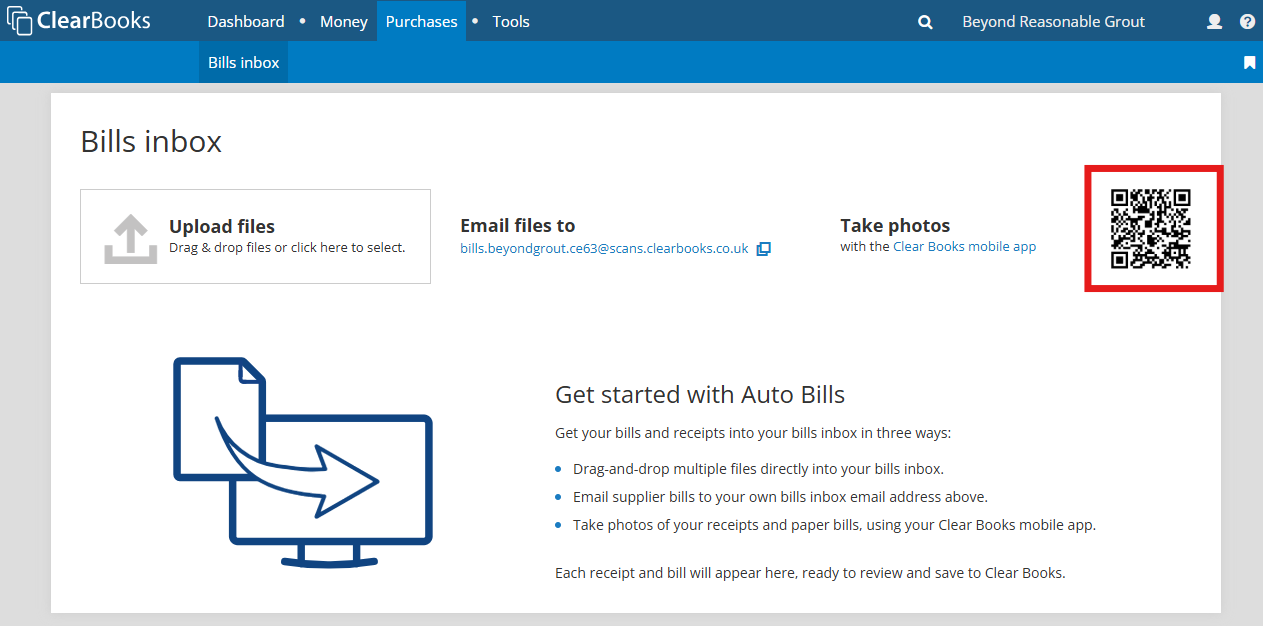
Note: The bills inbox displays a QR code that can be used to navigate to the mobile app download links on a mobile device.
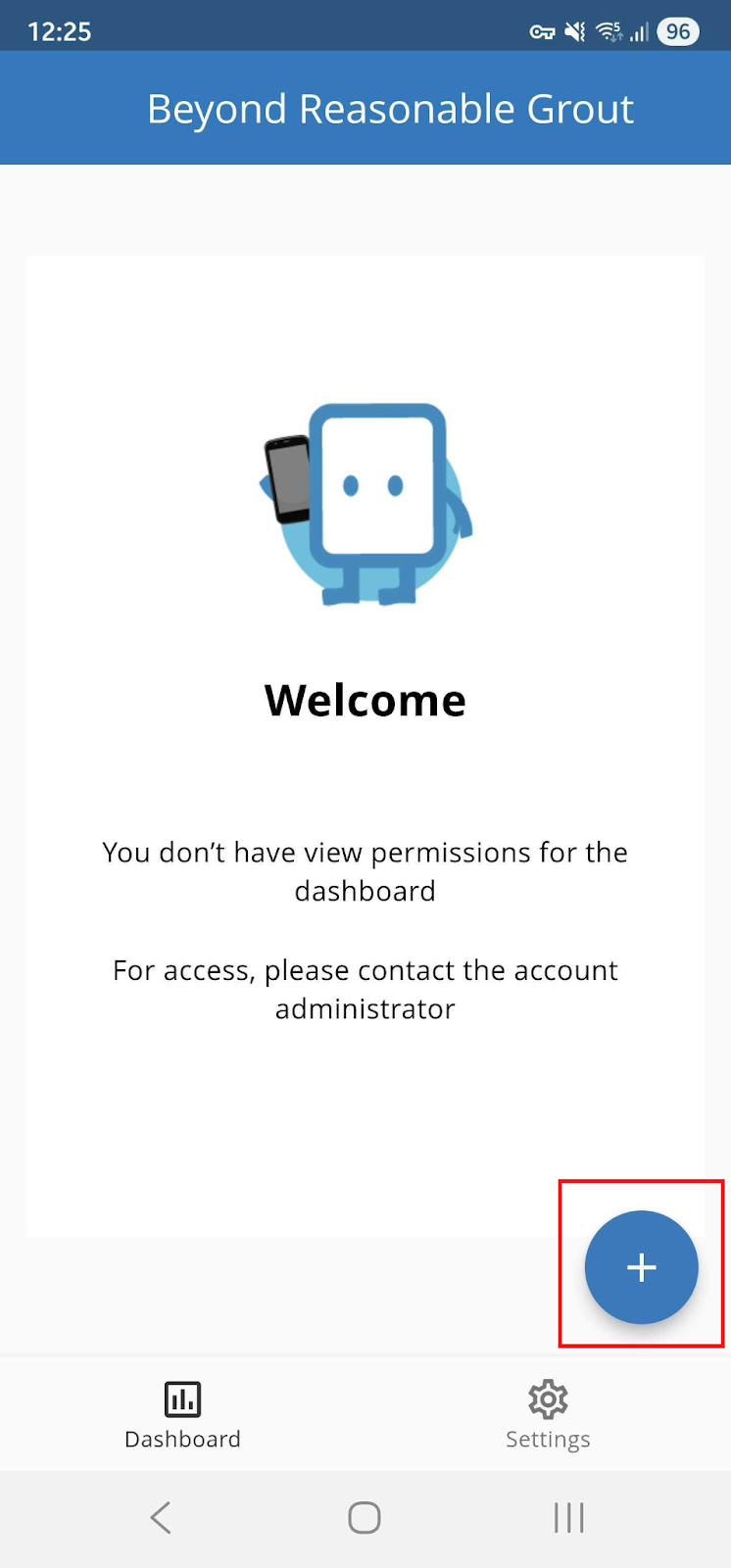
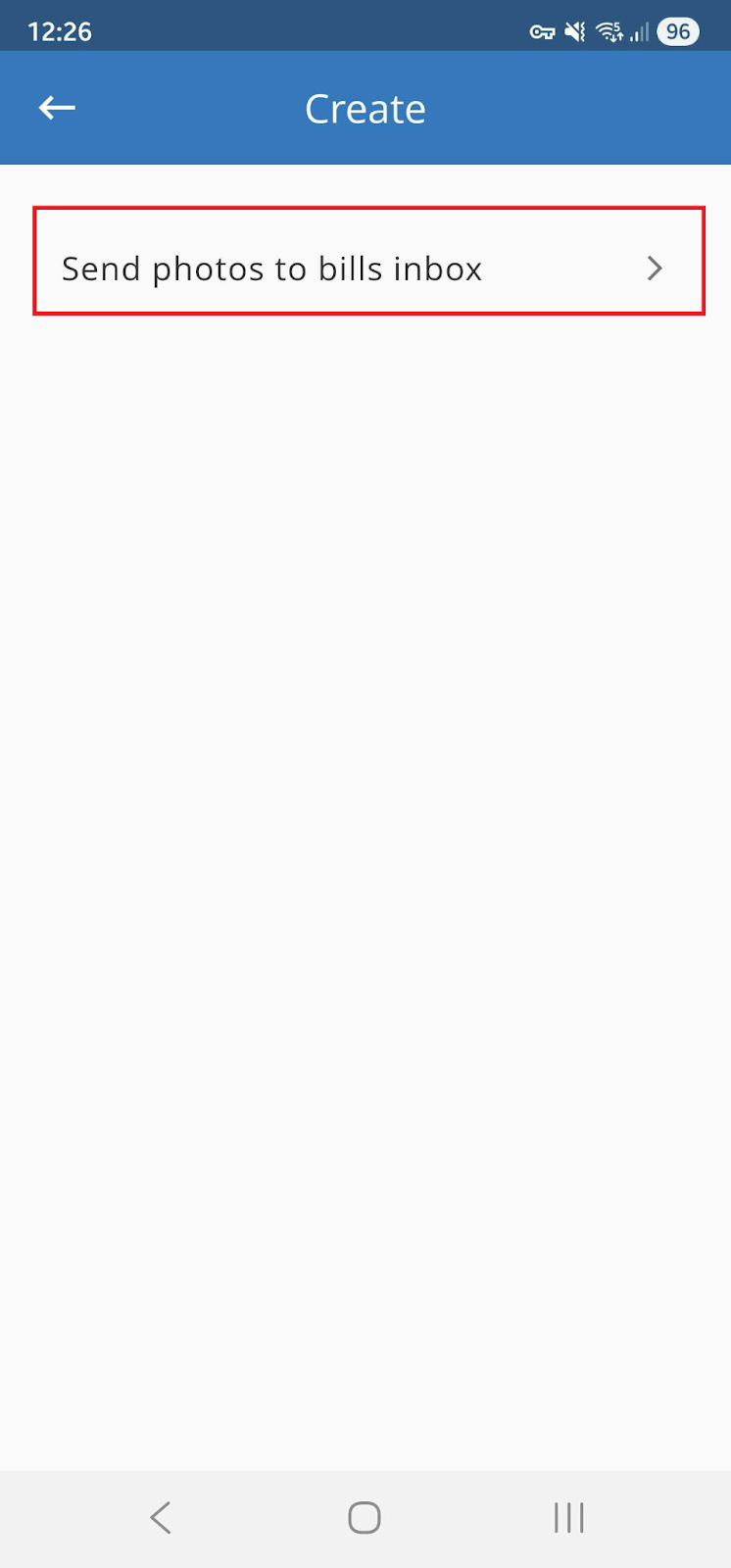
In the mobile app, use the quick add button and select “Send photos to bills inbox”.
Take photos of tills receipts, printed and even hand written invoices.
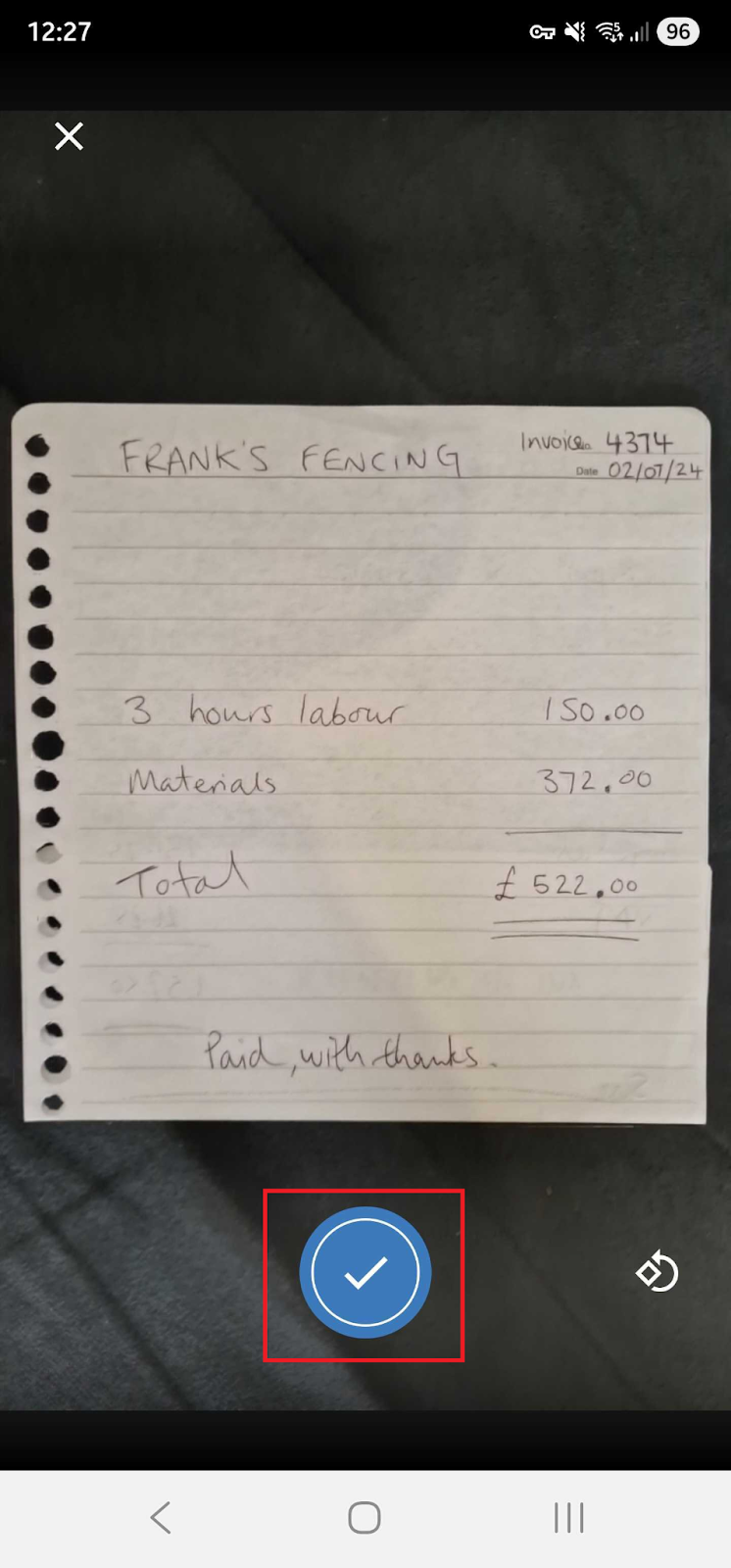
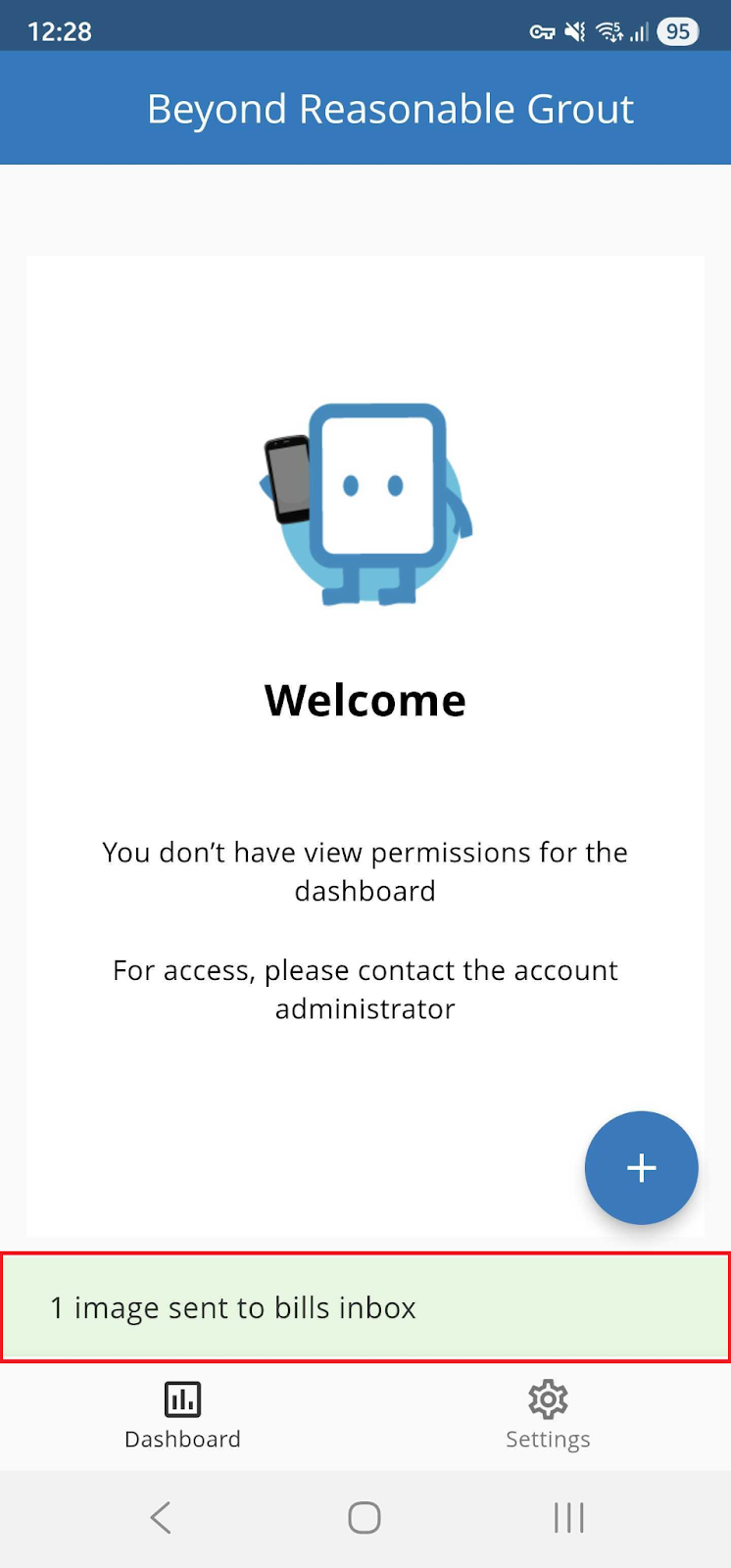
After the photo has been received by Clear Books, it will appear in the bills inbox ready to be reviewed and saved by the practice user.
Practice user - Reviewing files captured by a client user
The practice user can see any new files sent to the bills inbox by the client when they view the business dashboard in Clear Books.
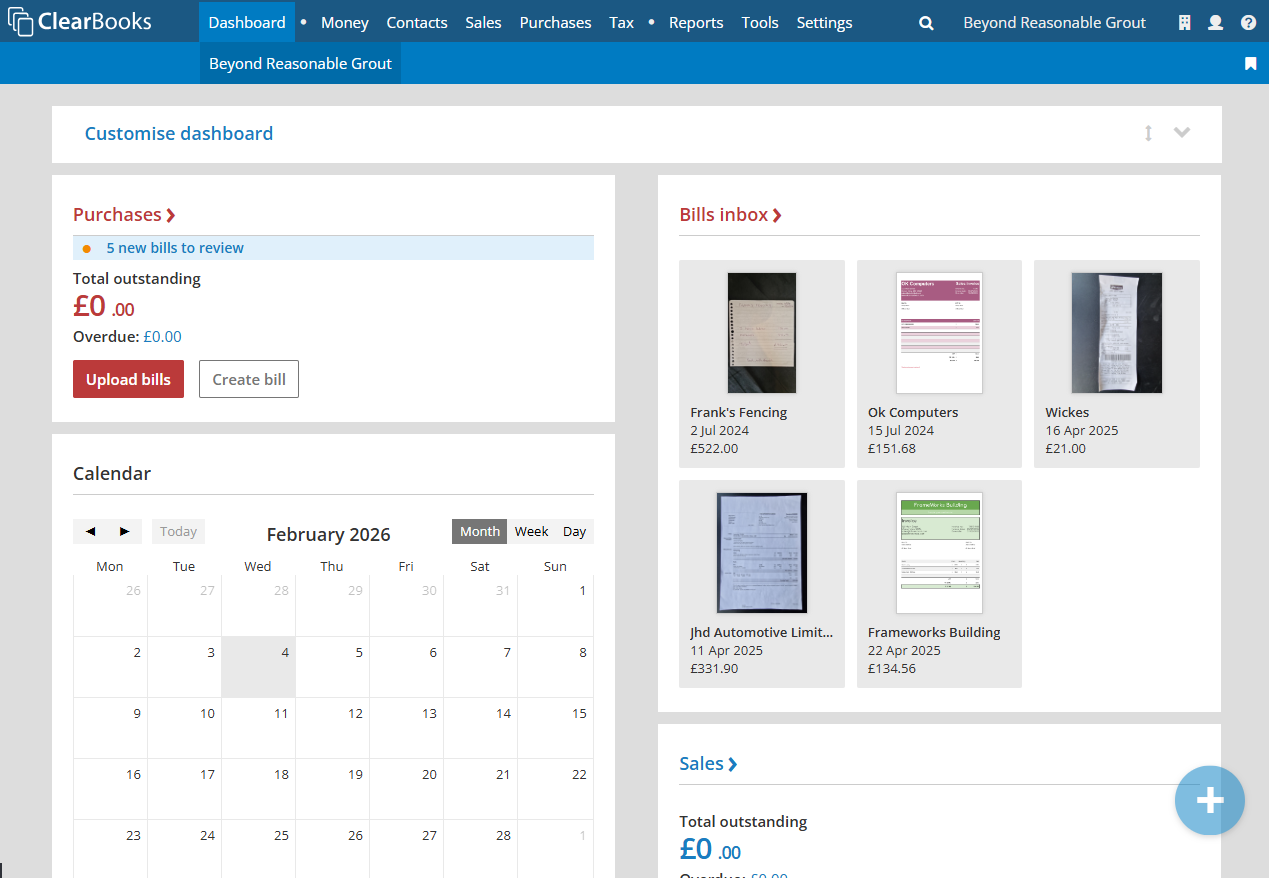
Select a file from this widget, or navigate to the bills inbox to select a file to review.
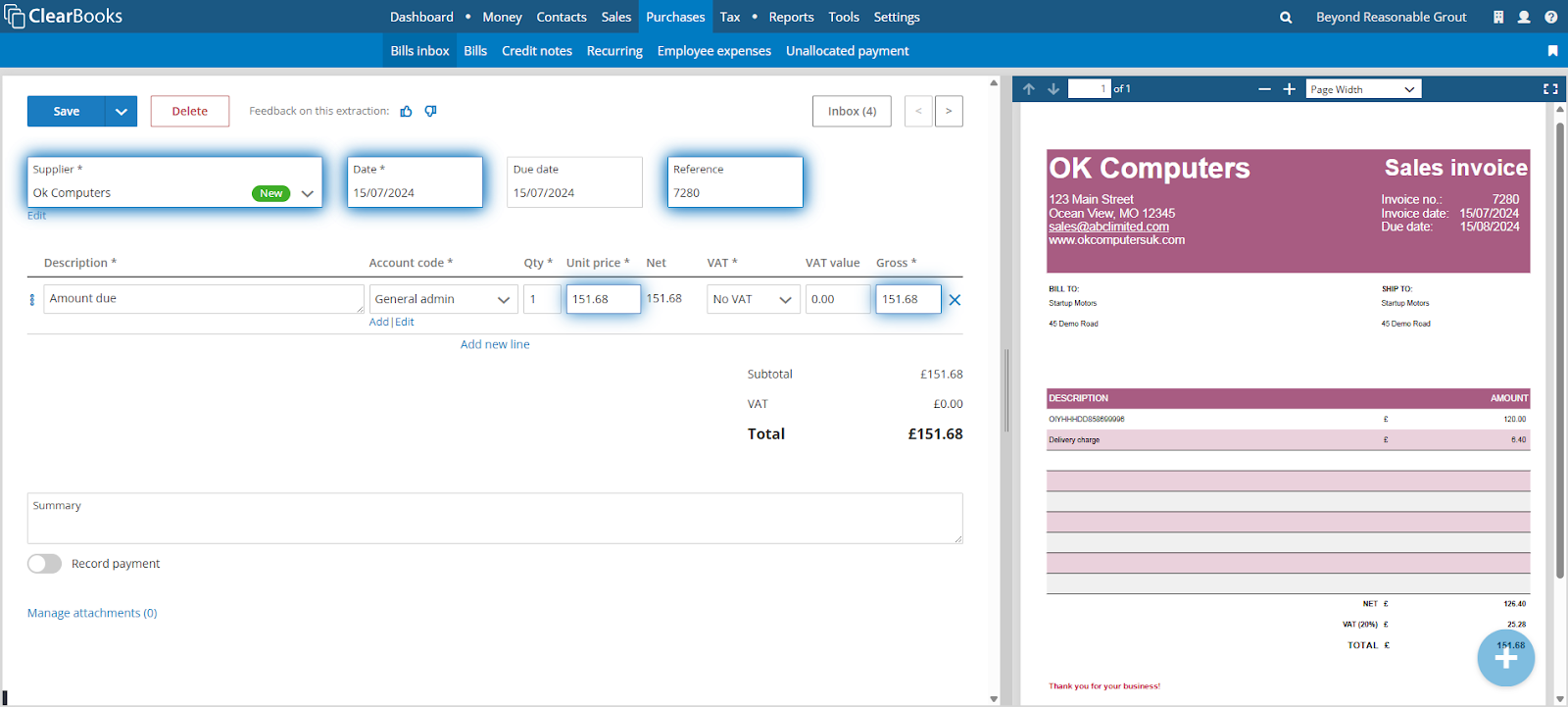
Each field containing auto-extracted information will glow, ready for the practice user to check.
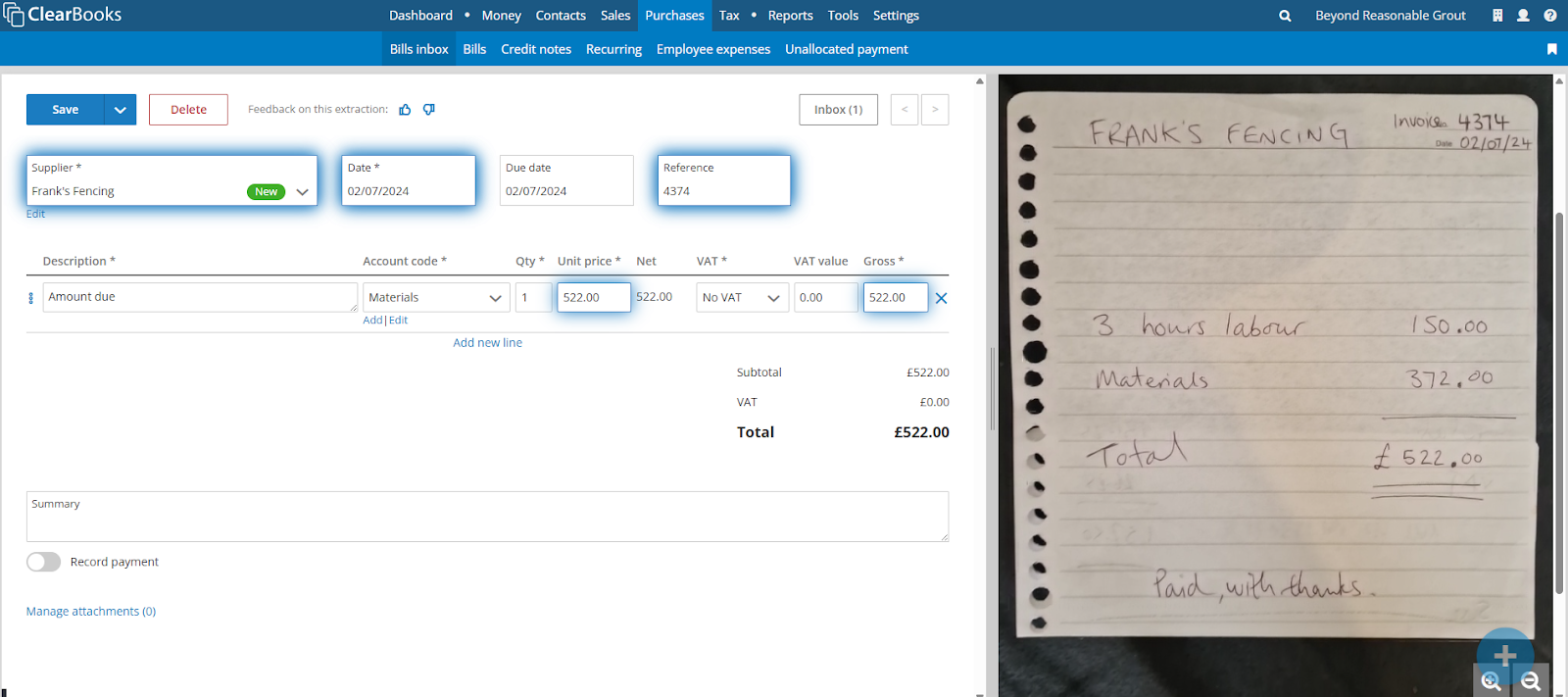
Changes can be made to any of the fields in the bill. When ready, select Save to record the bill in the Clear Books business.
The next bills inbox file will be shown automatically, ready to review.
Was this article helpful?
That’s Great!
Thank you for your feedback
Sorry! We couldn't be helpful
Thank you for your feedback
Feedback sent
We appreciate your effort and will try to fix the article