Clear Books supports multiple users, allowing you to invite accountants, employees, or directors to collaborate on your businesses.
Note: You must have Admin rights to perform the actions below.

If you are on the Clear Books Basic Accounting Free plans, you can only add your accountant as a user.

Roles and edit permissions cannot be created within Clear Books Basic Accounting plans.
1. How to Invite a New User
Follow these steps to add a new person to your business.
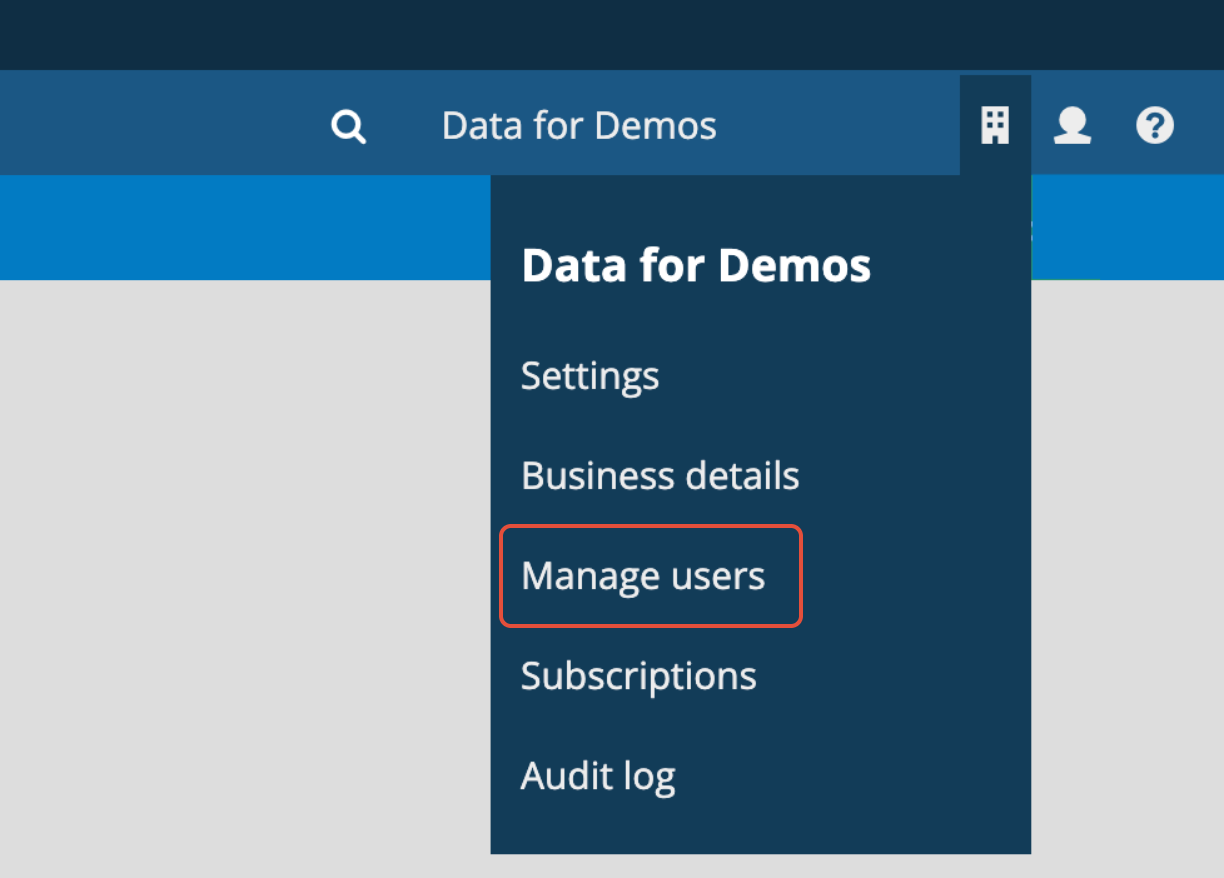
Step 1: Access User Management Navigate to Business [Building icon at top right] > Manage users.
Step 2: Start the Invitation Click the Invite user button.
Step 3: Enter User Details & Select Role Enter the Name and Email address of the new user, then select a Role.
- Predefined Roles: You can choose from standard roles such as Admin, Employee, or User.
- Custom Roles: You can also apply a custom role if you have created one (see Creating Custom Roles below).
Step 4: Configure Additional Options (If Applicable)
- For Employees (Timesheets/Employee Expenses/Payslips): If the user needs to view/create timesheets, employee expenses or view payslips, select the appropriate contact in the Employee field.
- Tip: Employees must first be added as a contact via Purchases > Employee Expenses or as a supplier with employment status via Contact > Supplier or as a new employee on payroll.
Step 5: Review and Adjust Permissions Even after selecting a role, you can fine-tune specific permissions before confirming:
- View Permissions: Click Show all permissions options to see exactly what access the user will have.
- Modify Permissions: Select the radio button under the Full Permission column to enable a feature, or under the No Permission column to disable it.
- Bulk Select: Click the Select All link within a title to remove or add all permissions in that section.
Step 6: Send Invite Click the Invite user button at the bottom. The user will receive an email with a temporary password (which they can change from the Clear Books account settings - the “person” icon).
2. How to Create Custom Roles
If the predefined roles do not fit your needs, you can create your own set of permissions.
Step 1: Navigate to Roles Go to Business [Building icon] > Manage users and click the View roles button.
Step 2: Define the New Role Enter a Role Name (e.g., "Junior Bookkeeper").
Step 3: Set Permissions By default, all permissions may be enabled. You can customise this by toggling specific access:
- Enable: Select the radio button under the Full Permission Select All column.
- Disable: Select the radio button under the No Permission Select All column.
Step 4: Save Scroll to the bottom and click Add Role. Your new role will now appear in the list of customised roles and can be assigned when inviting users.
3. How to Change the Main User (Business Owner)
The "Main User" holds ownership of the business. You can transfer this status to another user if necessary.
Step 1: Select the User Navigate to Business > Manage Users. locate the user you wish to make the new owner.
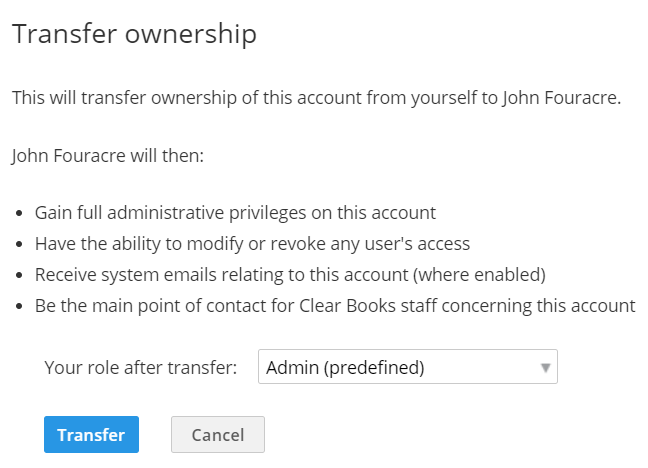
Step 2: Initiate Transfer Click the set of keys icon beside the user's name.  Step 3: Confirm Transfer Select the new role from the drop-down box and click the "Transfer" button.
Important: This transfers ownership of the business data. Ensure you are transferring rights to the correct authorised person.
4. How to remove a user from a business
As a business administrator, you have the authority to remove users who should no longer have access to your business (e.g., former employees or contractors) or who have requested their removal.
Access User Management: Go to Business > Manage users.
Locate the User: The "Your current users" table will display all current users. Find the entry for the user you intend to remove.
Initiate Removal: In the Action column for that user, click the red circled 'X' icon.
Confirm: A confirmation prompt will appear. Confirm the removal to immediately revoke the user's business access.
Was this article helpful?
That’s Great!
Thank you for your feedback
Sorry! We couldn't be helpful
Thank you for your feedback
Feedback sent
We appreciate your effort and will try to fix the article