The Subscription menu is the central location for managing all product and add-on subscriptions related to your business. From here, you can change or close active subscriptions, view your full billing history, and update your payment preferences.
Accessing the Subscription Menu
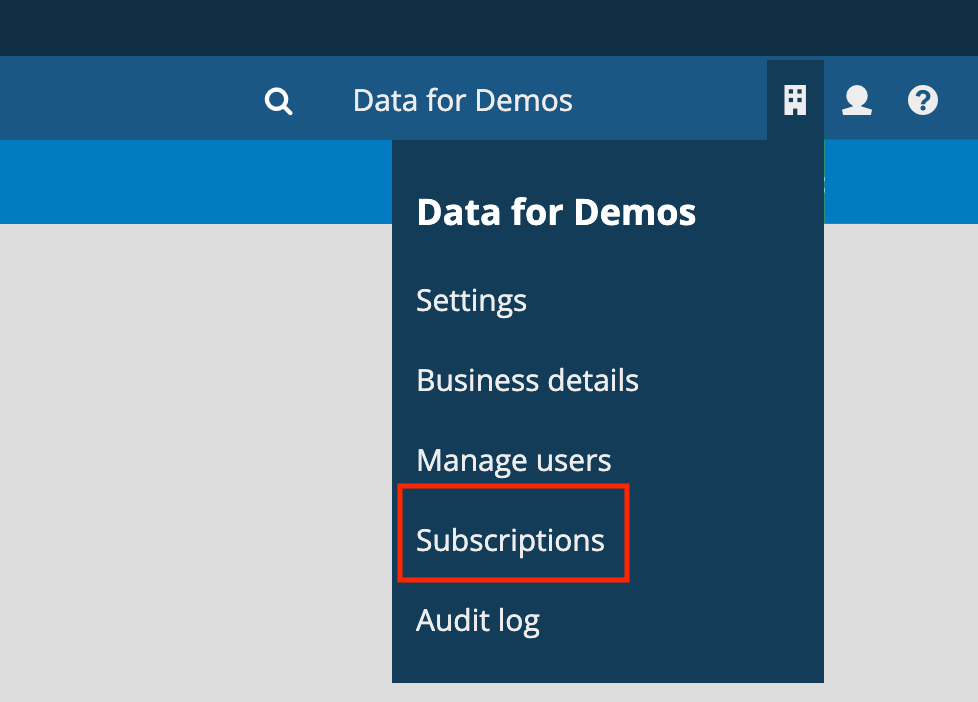
To get started with any of the tasks below, you first need to access the main menu:
- Log in to your account.
- Click on "Business" (represented by the building icon in the top right corner).
- Select "Subscription" from the drop-down menu.
1. Viewing Invoices and Billing History
You can easily track your payments and download past invoices for your records.
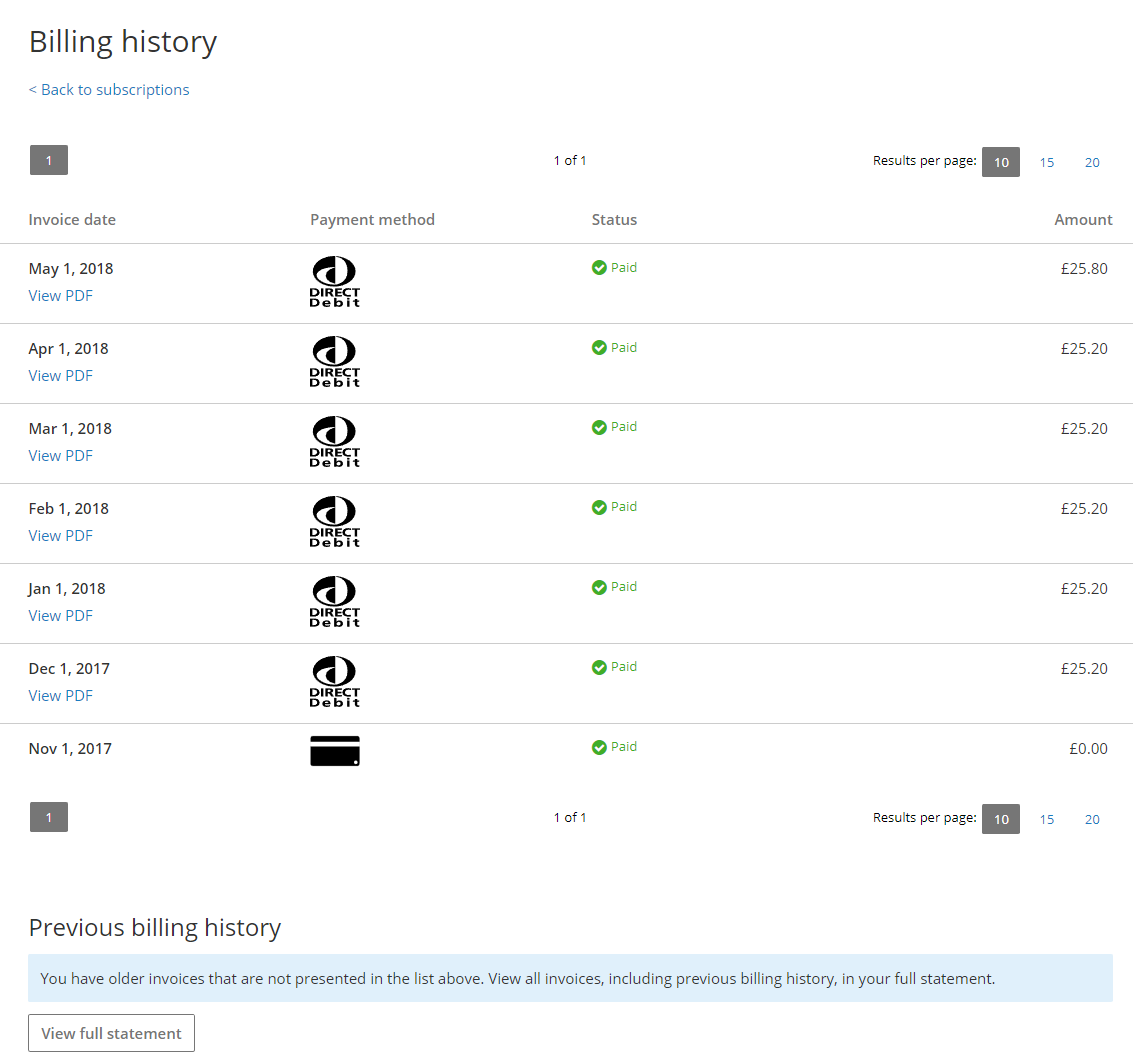
- Once in the Subscription menu, click on the "Billing history" tab.
- This list displays all past transactions, including:
- Payment Date
- Payment Method
- Status (e.g., Paid, Pending)
- To download or print a copy of a specific invoice, click the View PDF link next to the relevant transaction.
2. Updating Payment Methods (Direct Debit)
If you pay via Direct Debit, you can update your bank details directly through the software.
- In the Subscription menu, click on the Payment method tab.
- Locate the form provided for Direct Debit details.
- Enter your new account information and save your changes.
Note: Ensure your new payment details are saved well before your next billing date to prevent any interruption to your service.
3. Cancel Clear Books Subscriptions
To cancel an active subscription, follow these steps:
- Click the Business icon (shaped like a building) in the top right corner.
- Select Subscriptions from the drop-down menu.
- Scroll down to the bottom of the page and click the ‘close subscriptions’ link.
If you have more than one business and need to close multiple subscriptions, use the business drop-down menu (which displays your name).
Any business that does not have an active subscription will be automatically scheduled for closure.
Was this article helpful?
That’s Great!
Thank you for your feedback
Sorry! We couldn't be helpful
Thank you for your feedback
Feedback sent
We appreciate your effort and will try to fix the article