Use this guide to clear your data in any business. This is useful if you have been testing the system and want to start fresh, or if you need to clear specific information like payroll records.
Warning: Resetting your data is permanent and cannot be undone. Please be certain before you proceed.
Step 1. Navigate to the business settings page
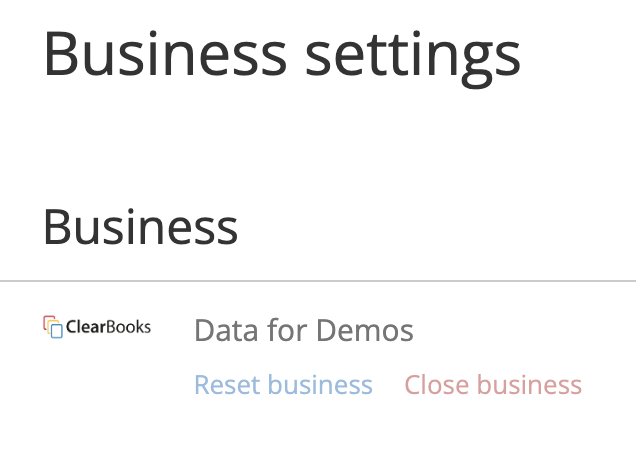
From the main menu, navigate to: Business > Settings.
Step 2. Navigate to the Reset Page
Click on the “Reset business link”
Step 3. Choose Your Reset Option
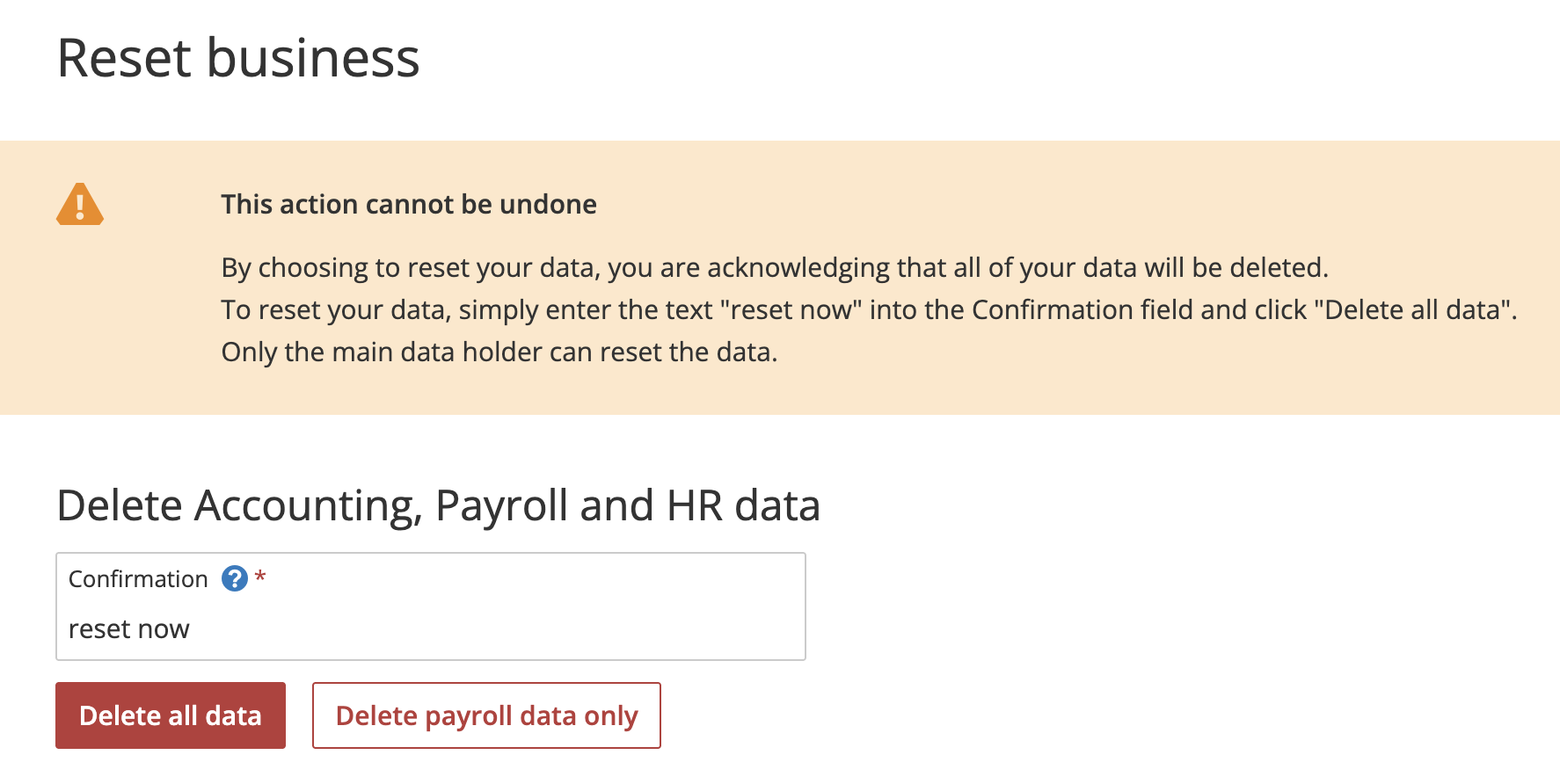
On the "Reset account" page, you will have two options. Select the one that matches your goal:
Option A: Delete all data
Click the Delete all data button.
This action will completely reset your business and remove all business data you have entered (invoices, expenses, contacts, payroll, etc.).
Use this if you want a completely fresh start.
Option B: Delete payroll data only
Click the Delete payroll data only button.
This action will remove only information related to payroll (employee records, pay runs, tax filings, etc.).
All other Accounting data, like invoices and expenses, will be kept.
Step 4. Confirm the Deletion
After clicking a delete button, a confirmation box will appear. You must read the warning and confirm your choice to finalise the reset.
Was this article helpful?
That’s Great!
Thank you for your feedback
Sorry! We couldn't be helpful
Thank you for your feedback
Feedback sent
We appreciate your effort and will try to fix the article