The help guide series for our Full Accounting productThe Multi-currency feature allows you to invoice, pay, and manage bank accounts in foreign currencies. We integrate with XE.com to automatically update conversion rates based on the transaction date, though you can also set custom manual rates.
Note: This feature is currently only available on the Large plan.
Enable Multi-Currency & Select Currencies
Before you begin, you must enable the feature and select which currencies you wish to trade in.
- Navigate to Settings > Configure system > Toggle features.
- Click the "Features" tab and use the slider beside "Multi-currency".
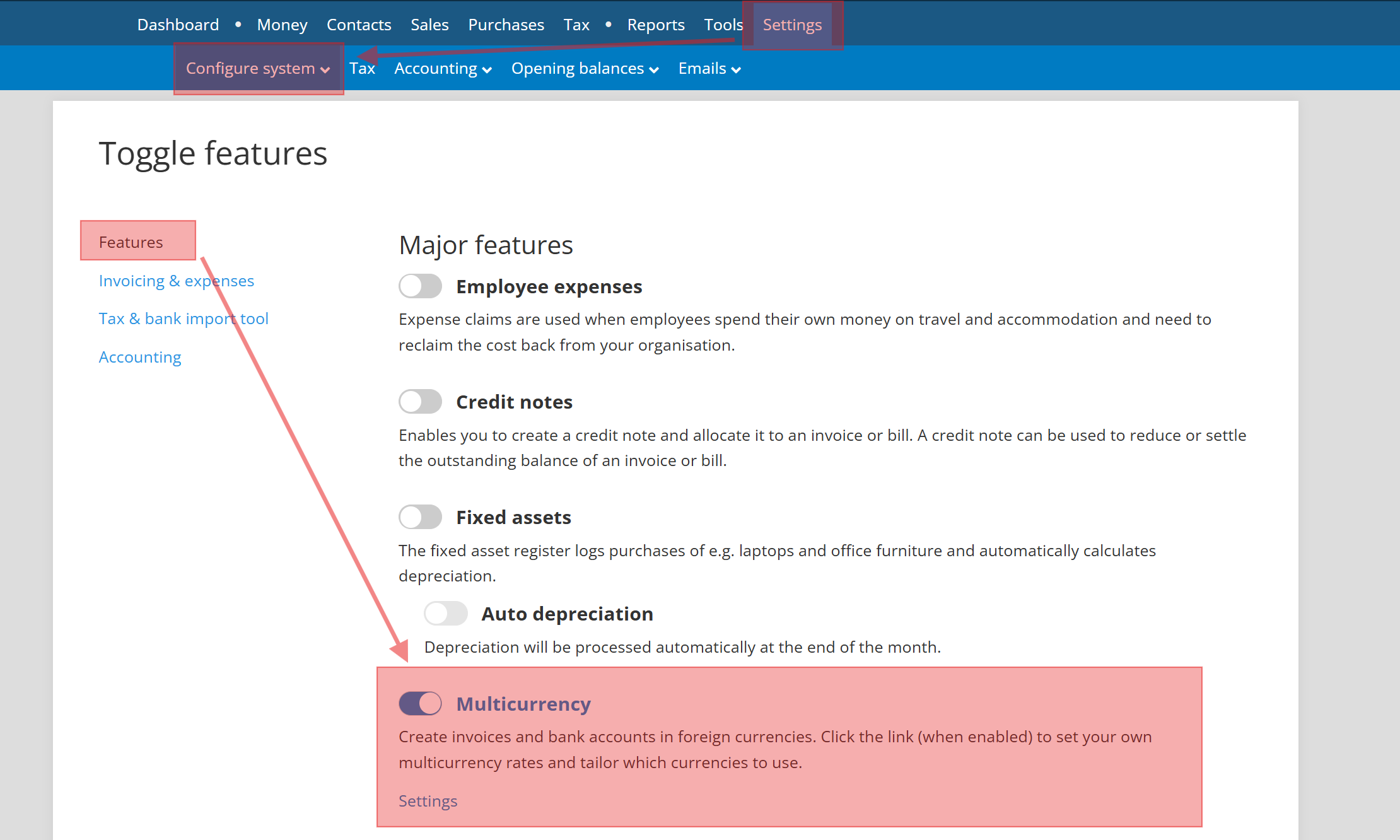
- Click the Multicurrency link that appears.
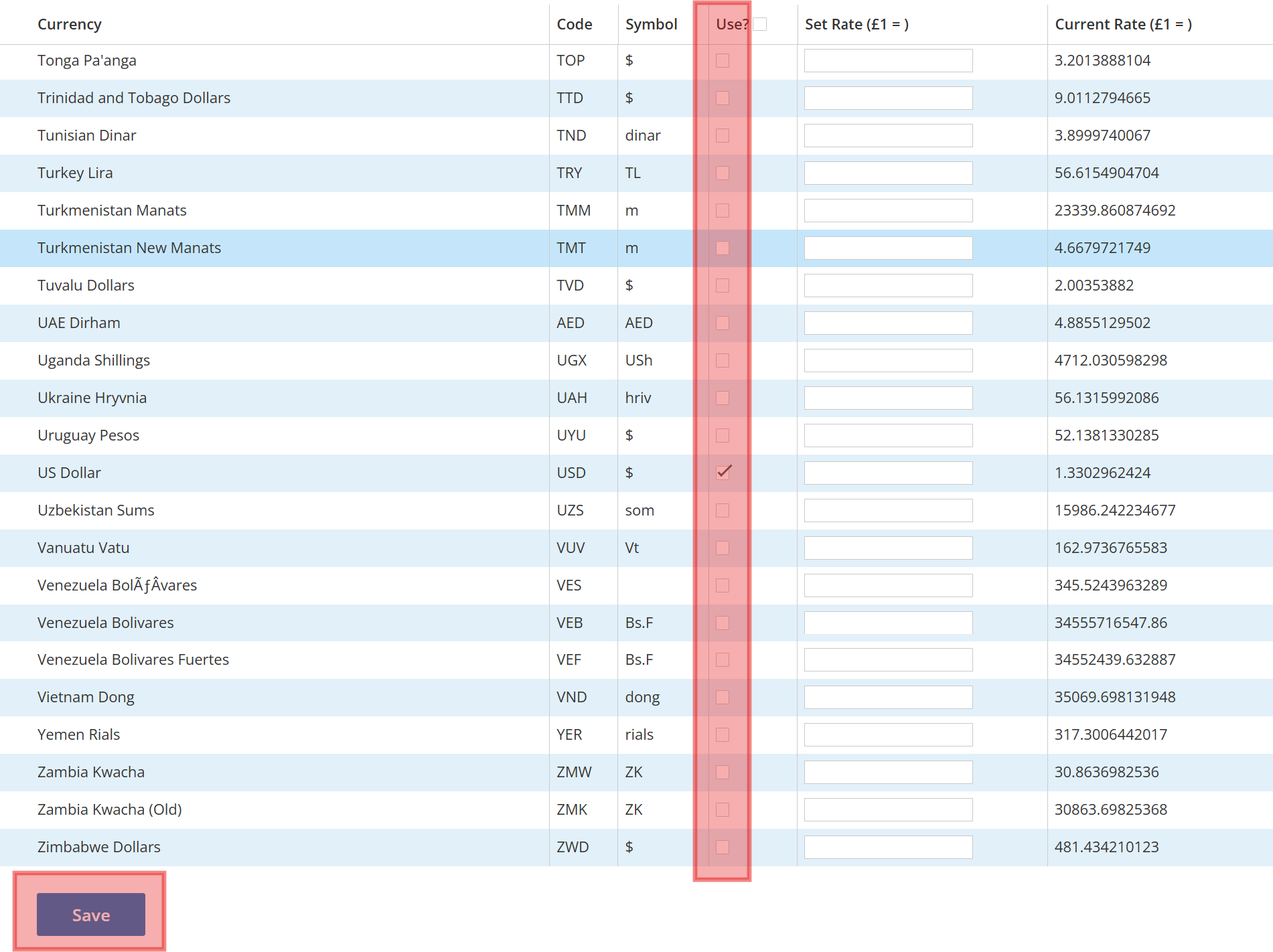
- Select Currencies: Tick the checkboxes beside the currencies you want to use. These will now appear in dropdown menus (e.g., when creating invoices).
- Set Rates:
- Automatic: Leave the "Set Rate" box empty to use daily rates from XE.com.
- Manual: Enter a value into the "Set Rate" box to lock in a specific exchange rate.
- Scroll to the bottom and click Save.
Add a Multi-Currency Bank Account
To manage foreign funds, you need a designated bank account in Clear Books.
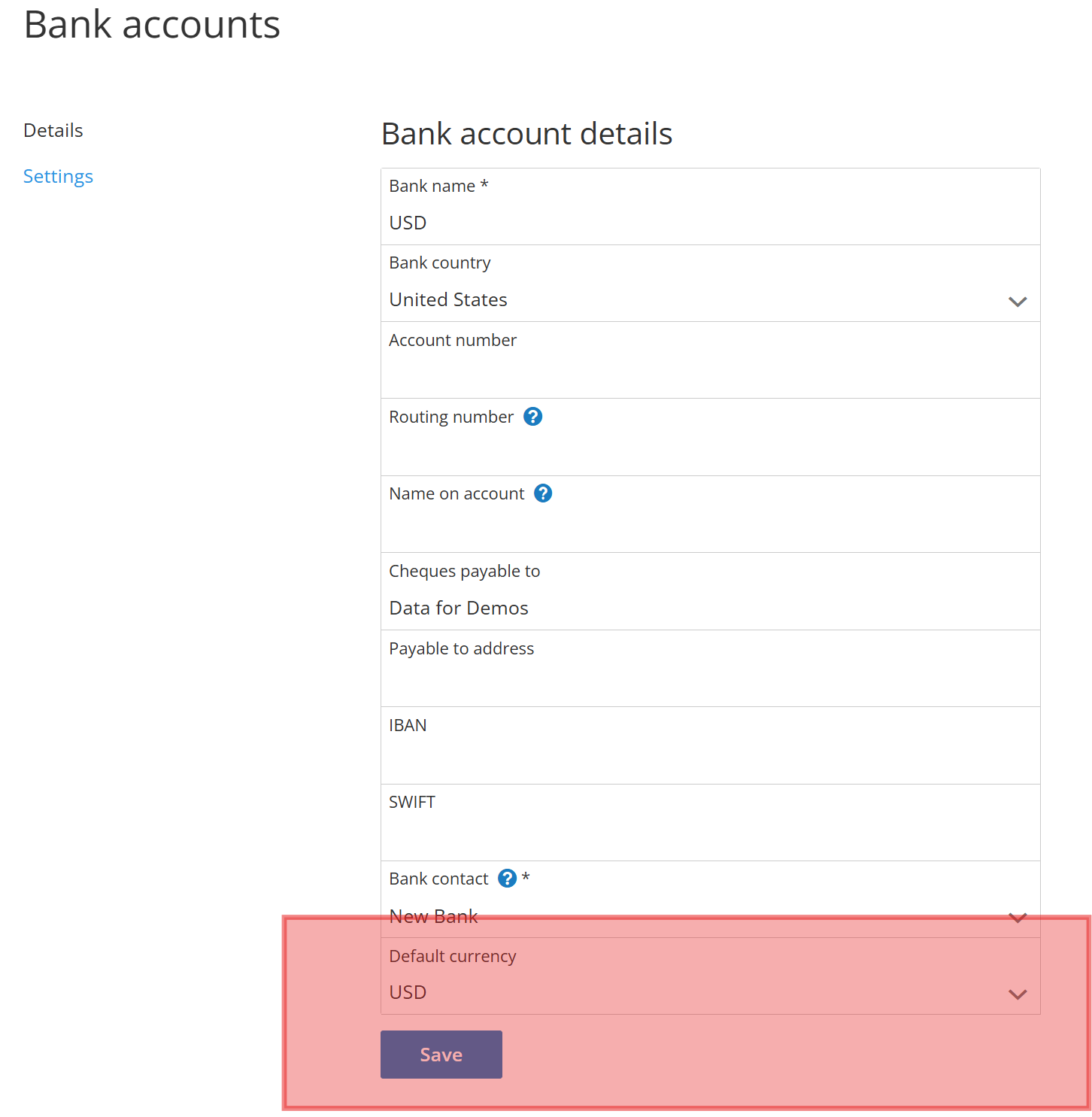
- Navigate to Money > Bank accounts and click "Add account".
- Choose the appropriate account type.
- Fill in the bank details. Crucially, select the foreign currency from the "Default currency" dropdown list.
- Click "Save".
Set Up an Opening Balance
If you are migrating to Clear Books with existing foreign funds, you must set the opening balance correctly.
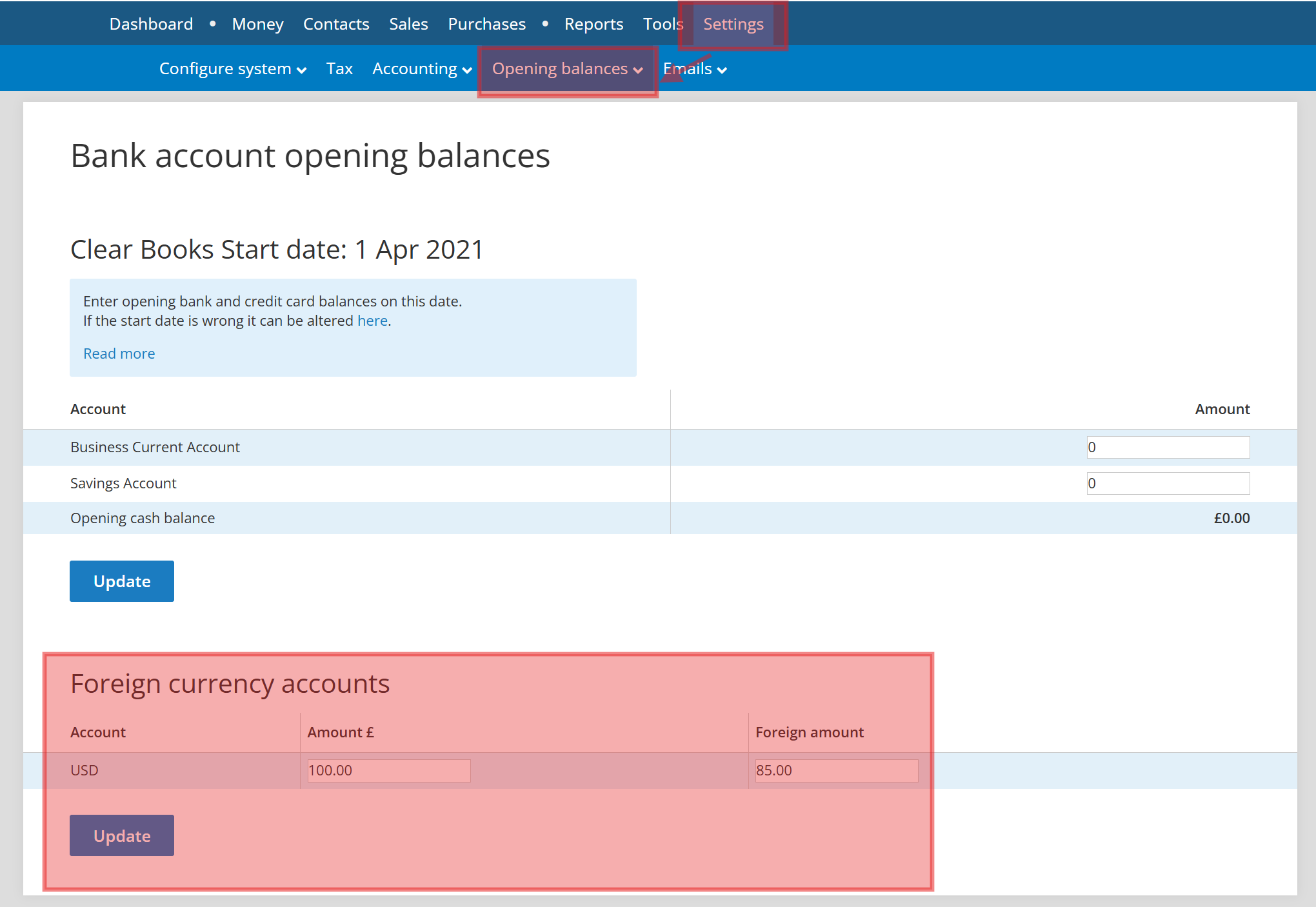
- Navigate to Settings > Opening balances > Cash.
- Locate your foreign bank account. You will see two boxes:
- Box 1 (Home Currency): Enter the converted value in your home currency (e.g., GBP).
- Box 2 (Foreign Currency): Enter the actual foreign currency amount (e.g., USD).
- Click "Update" to save.
Creating a Multi-Currency Invoice
- Navigate to Sales > Invoices and click "Create invoice".
- Fill in the invoice details.
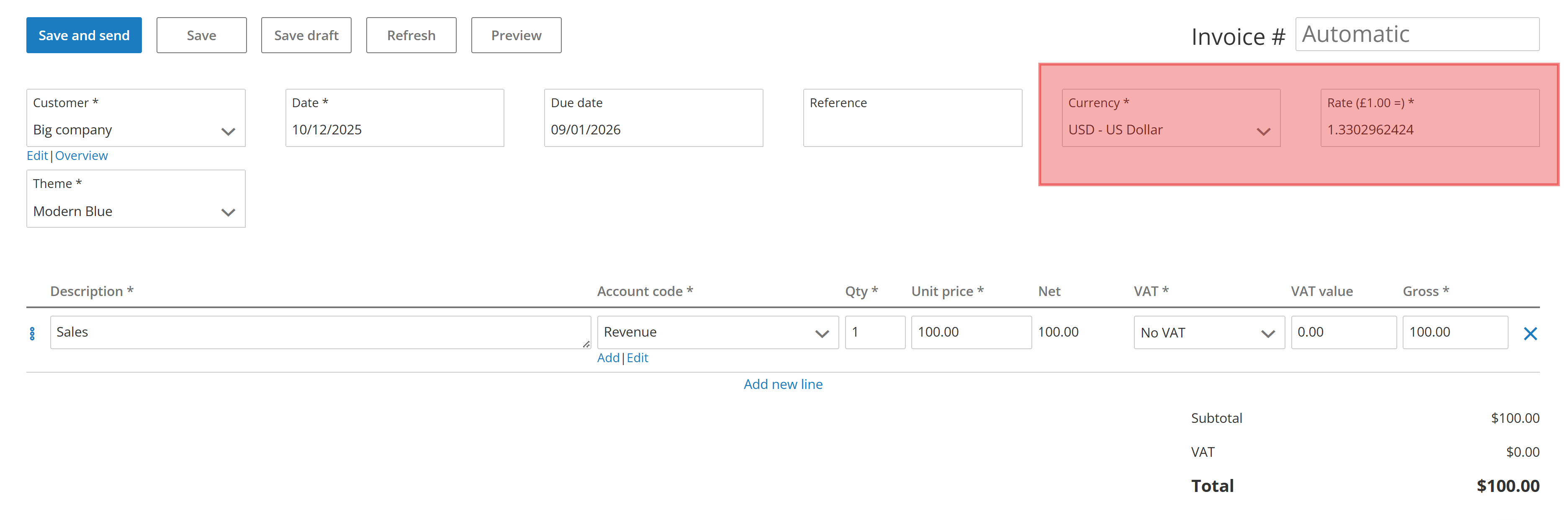
- Ensure you select the correct Currency from the dropdown. The Rate will auto-fill based on your settings (XE.com or manual), but can be edited here if needed.
- Click "Save".
Applying a Foreign Payment to a Foreign Invoice
Example: Allocating a US Dollar receipt to a US Dollar invoice when your home currency is GBP.
- Navigate to Sales > Unallocated receipt.
- Click "Add unallocated receipt"
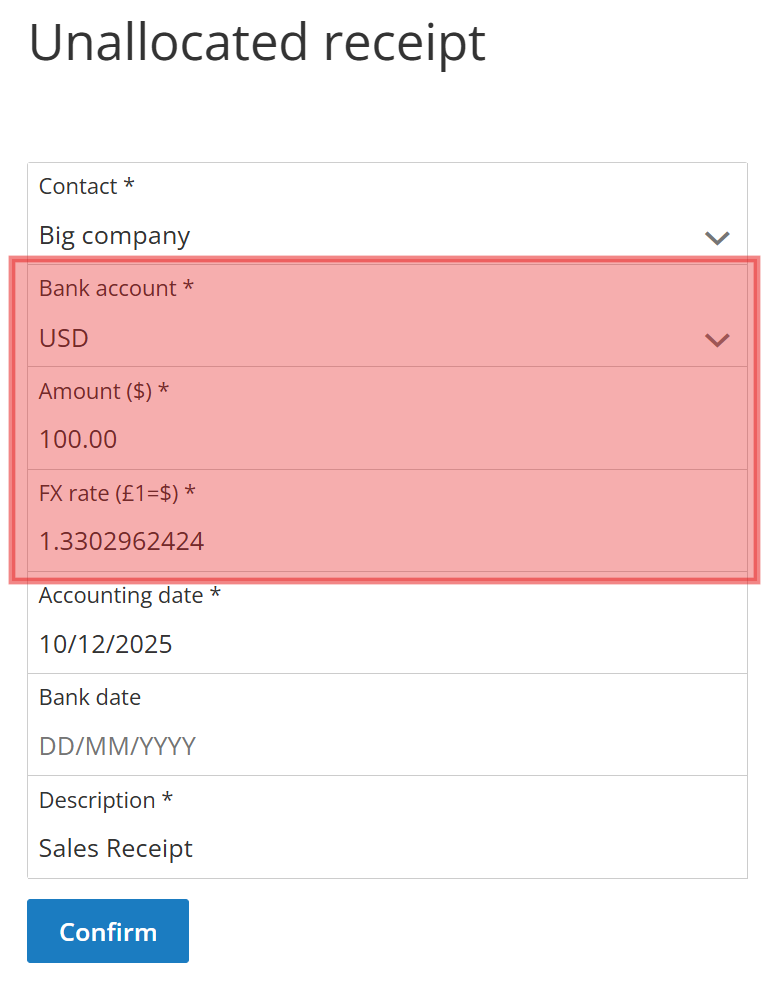
- Enter the payment details. Ensure you select the Foreign Bank Account and check the FX Rate (automatically pulled from XE.com based on the payment date).
- Click "Confirm".
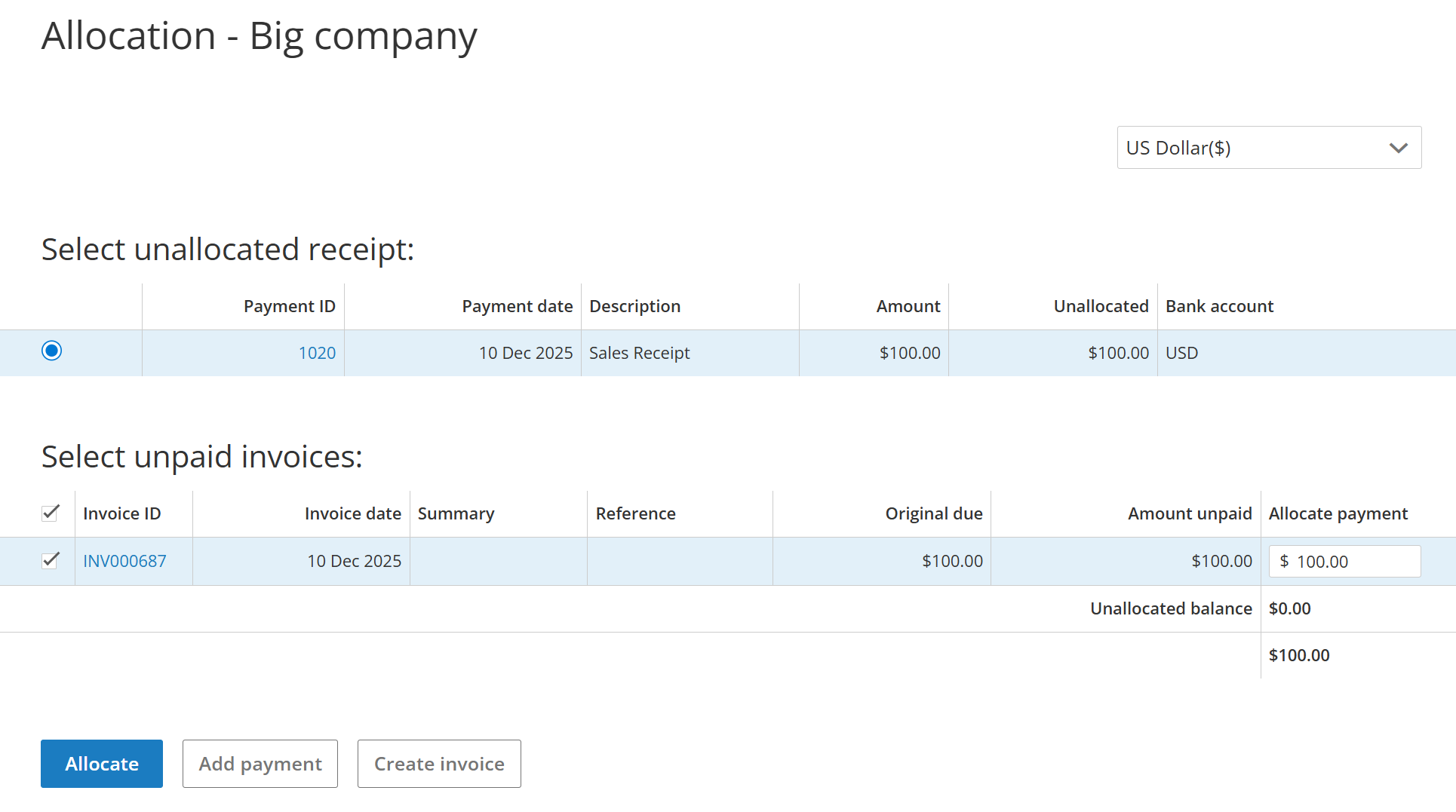
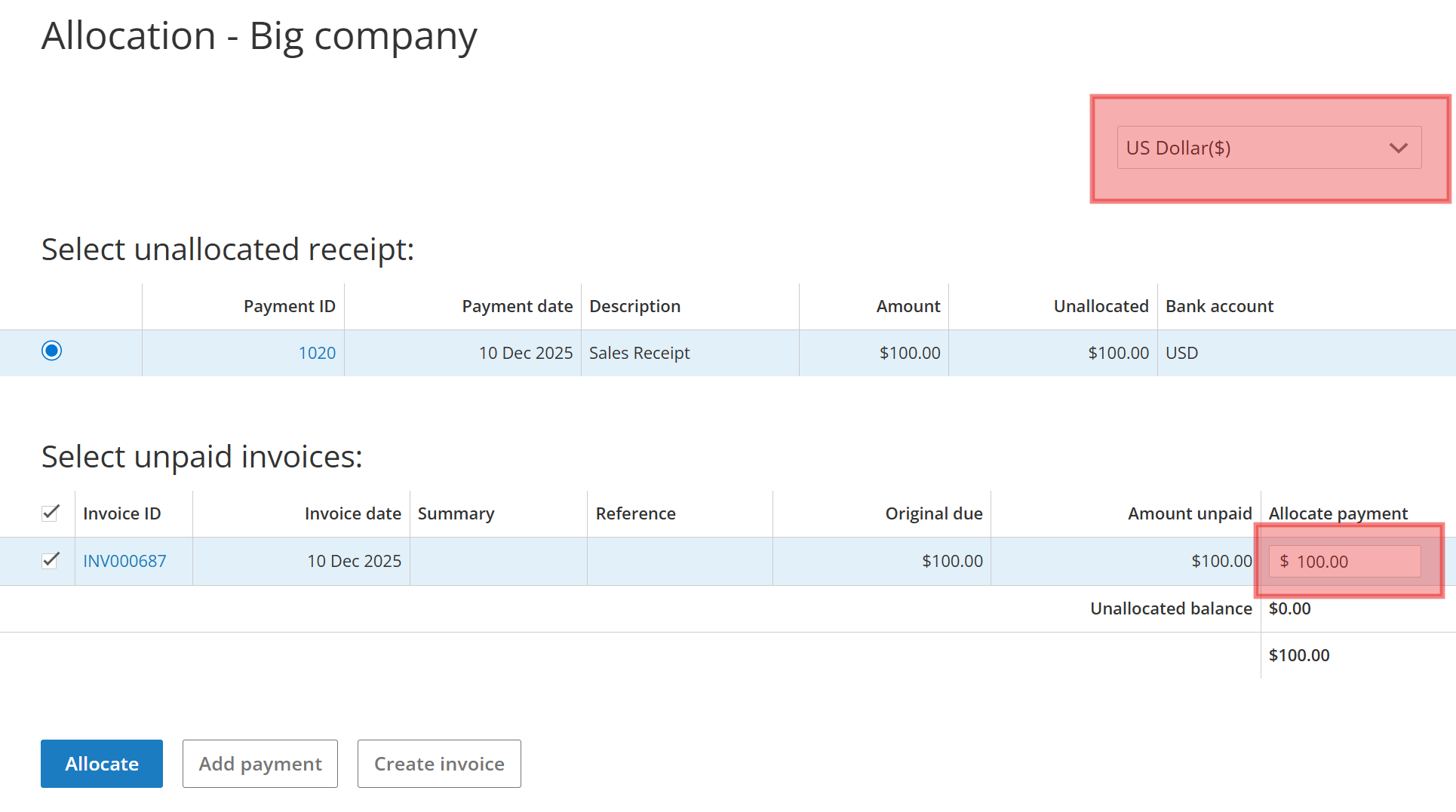
- You will be redirected to the allocation screen. Change the currency dropdown to the foreign currency (e.g., USD).
- Select the appropriate invoice(s) to pay off.
- Enter the amount to allocate and click "Allocate".
Note: You can return to the allocation menu at any time by heading to Money > Unallocated cash and clicking on the "Allocate" link beside the appropriate payment.
Switching Currency Views on Statements
Your bank statement tracks both the foreign currency balance and the converted home currency value.
- Navigate to Money > Bank accounts.
- Click the balance of your foreign bank account.
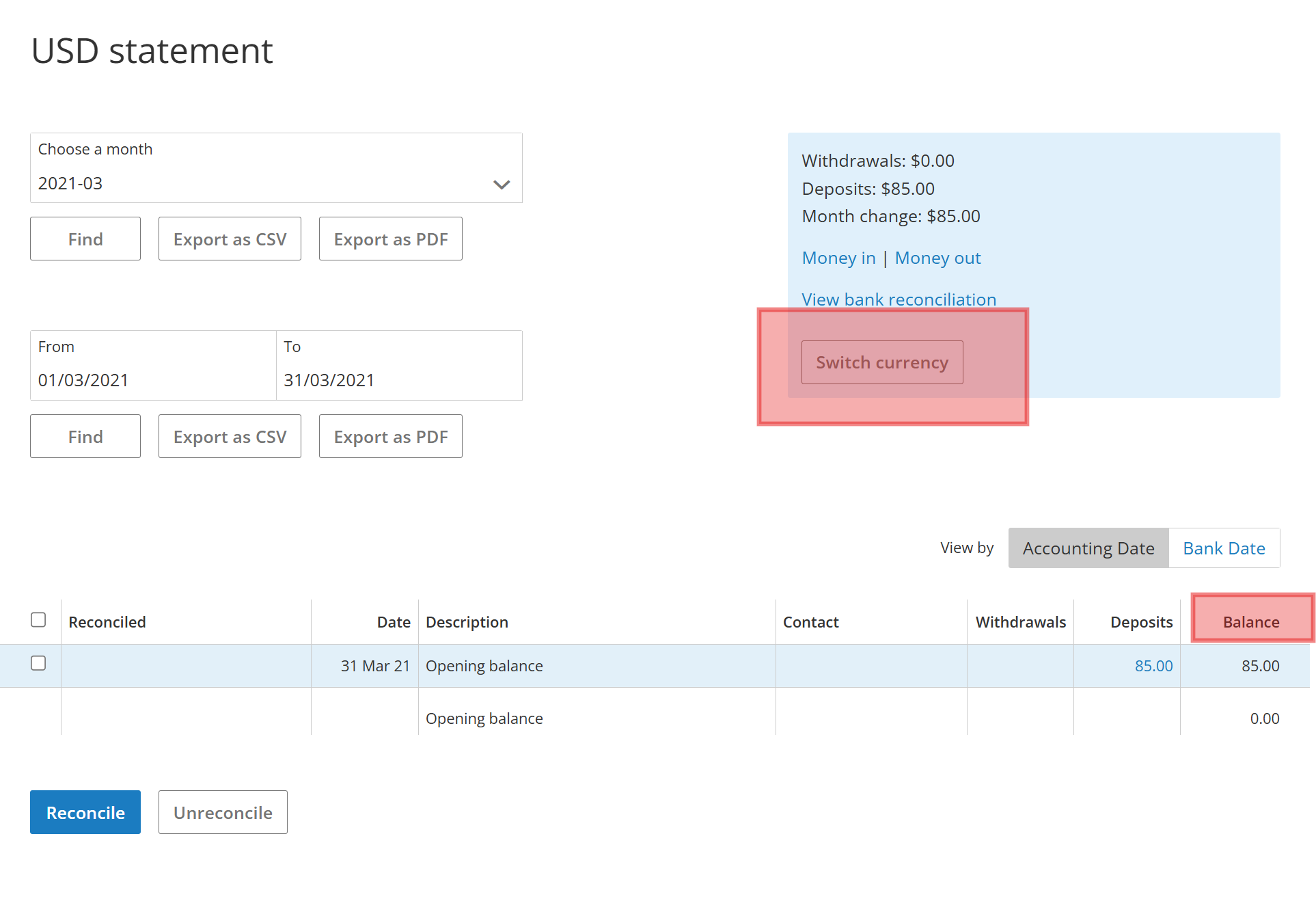
- Locate the Switch Currency button (to the right of the search filters).
- Click this button to toggle the view between your Home Currency balance and the Foreign Currency balance.
Revaluing a Bank Account
Exchange rates fluctuate. At the end of a reporting period, you may need to revalue your foreign holdings to match the current exchange rate (as per accounting standards).
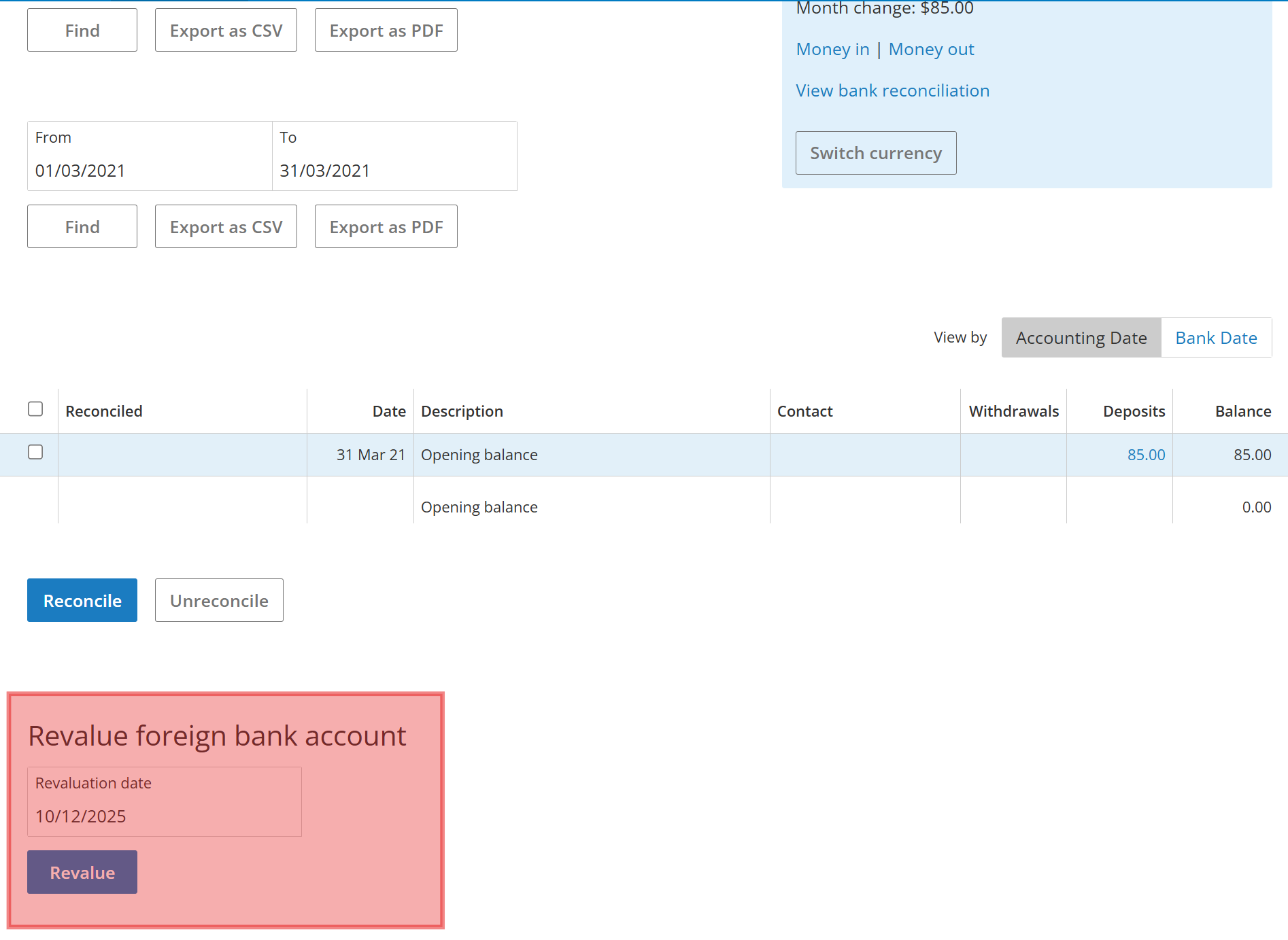
- Navigate to Money > Bank accounts and click the balance of your foreign bank account name.
- Locate the "Revaluation date" box (bottom left).
- Enter the date you wish to revalue the account (e.g., the period end date).
- The system will calculate the new home currency balance using that day's rate from XE.com and create a journal to adjust the difference.
Note: The foreign currency balance remains unchanged; only the home currency value is adjusted.
Managing Forex Gains & Losses
Exchange rate fluctuations between the invoice date and the payment date can cause discrepancies. Here is how to handle them.
Handling Forex Losses (Manual Write-off)
If the exchange rate drops, the payment value in your home currency may be less than the invoice value, leaving a small balance due.
- Navigate to Sales > Invoices.
- Click the invoice number associated with the payment.
- Scroll to the bottom of the invoice and click on the "FX" tab.
- Enter the date then click "FX Write Off".
Handling Forex Gains (Manual Adjustment)
If the exchange rate rises, the payment value in your home currency may be more than the invoice value. You must account for this gain.
- Navigate to Sales > Invoices and click "Create invoice".
- Create a new invoice for the "Gain":
- Customer: Same as original invoice.
- Account: Select "Forex Movement".
- Date: Same as the payment date.
- Unit Price: The remaining unallocated amount of the receipt.
- Currency: Same as the receipt.
- Save the invoice.
- Click the "Allocate payment" button on the invoice.
- Select the currency (defaults to home currency) and the unallocated payment.
- Enter the amount to allocate and click "Allocate".
Was this article helpful?
That’s Great!
Thank you for your feedback
Sorry! We couldn't be helpful
Thank you for your feedback
Feedback sent
We appreciate your effort and will try to fix the article